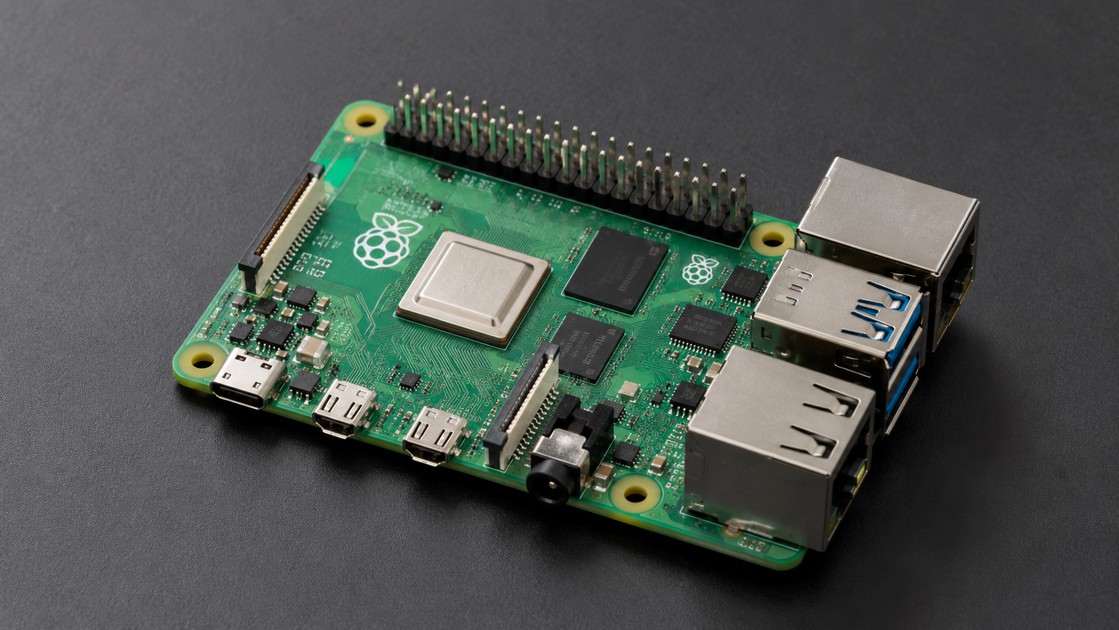
前面幾章,我們已經完成:
Raspberry Pi 基礎認識
        ↓
Raspberry Pi 5 硬體
        ↓
Raspberry Pi OS 安裝
        ↓
Linux Terminal
現在 Raspberry Pi 已經是一台可以正常操作的 Linux 電腦。
但是目前我們大多還是在 Raspberry Pi 本機:
Monitor
+
Keyboard
+
Mouse
+
Raspberry Pi
操作。
本章要完成一個非常重要的轉變:
讓 Raspberry Pi 成為可以透過網路遠端管理的 Linux 主機。
完成設定後,可以從 Windows 電腦直接:
Windows PC
    │
    │ Ethernet / Wi-Fi
    │
    ▼
Raspberry Pi 5
    │
    └── SSH Terminal
這樣 Raspberry Pi 就不需要永遠接著:
- Monitor
- Keyboard
- Mouse
而可以放在:
- 書桌下
- 機櫃
- 工廠設備
- IoT 控制箱
- Sensor Station
- 機器人
- Server Room
透過網路進行管理。
Raspberry Pi 官方把這種沒有傳統螢幕、鍵盤與滑鼠,而使用 SSH 或 Raspberry Pi Connect 遠端操作的方式稱為 Headless 使用方式。
1. Raspberry Pi 為什麼需要網路?
Raspberry Pi 本身就能離線工作。
但是連上網路之後,它的用途會大幅增加。
例如:
Internet / LAN
      │
      ▼
Raspberry Pi
      │
      ├── SSH
      ├── Web Server
      ├── MQTT
      ├── Database
      ├── API
      ├── NTP
      ├── Software Update
      └── IoT
後續的:
- Flask
- MQTT
- IoT
- Web Dashboard
- 遠端監控
幾乎都建立在本章的 Network 基礎上。
2. Raspberry Pi 5 有哪些網路方式?
Raspberry Pi 5 主要提供:
有線網路
Gigabit Ethernet
無線網路
Wi-Fi
除此之外還有 Bluetooth,但 Bluetooth 並不是本章主要的 IP Network。
因此本章主要討論:
Raspberry Pi 5
│
├── Ethernet
│
└── Wi-Fi
3. Ethernet 是什麼?
Ethernet 就是一般常見的:
有線區域網路。
典型架構:
Raspberry Pi
     │
     │ Ethernet Cable
     ▼
Router / Switch
     │
     ▼
Local Network
     │
     ▼
Internet
Raspberry Pi OS 在一般 DHCP 網路中,接上 Ethernet Cable 後會自動嘗試取得網路設定。
因此對第一次學習 SSH 而言:
Ethernet 通常是最容易除錯的方式。
4. Wi-Fi 是什麼?
Wi-Fi 則是不需要網路線的無線網路。
架構:
Raspberry Pi
     )))
     ))) Wi-Fi
     )))
Wireless Router
      │
      ▼
Internet
對:
- Sensor
- Robot
- Smart Home
- Camera
- IoT Node
特別方便。
Raspberry Pi OS 目前可透過 Desktop Network Manager 或 Terminal 的 nmcli 管理 Wi-Fi。
5. 一台 Raspberry Pi 可以同時有 Ethernet 與 Wi-Fi 嗎?
可以。
例如:
┌── Ethernet ── 192.168.1.50
Raspberry Pi
          └── Wi-Fi ───── 192.168.1.80
所以同一台 Raspberry Pi 有可能同時看到:
兩個 IP Address。
這也是為什麼:
hostname -I有時會顯示不只一個 IP。
6. IP Address 是什麼?
IP Address 可以理解為:
網路上的位址。
例如:
192.168.1.120當 Windows 想連 Raspberry Pi 時,必須知道:
Raspberry Pi 在網路上的位置在哪裡?
這時就需要 IP Address。
例如:
Windows
192.168.1.10

        │
        ▼

Raspberry Pi
192.168.1.120
然後:
ssh jason@192.168.1.120就能指定要連哪一台 Raspberry Pi。
7. IPv4 是什麼?
本章主要先使用:
IPv4
常見格式:
192.168.1.120由四組數字構成。
家用 LAN 常見範圍例如:
192.168.0.x
192.168.1.x
192.168.50.x
10.0.0.x
不同 Router 設定可能不同。
因此不要假設所有 Raspberry Pi 都一定是:
192.168.1.x8. Private IP 和 Public IP 不一樣
例如:
192.168.1.120通常是:
Private IP
也就是區域網路內使用的位址。
它不是你的 Internet Public IP。
典型架構:
Internet
   │
Public IP
   │
Router
   │
Private LAN
   │
   ├── PC 192.168.1.10
   ├── Pi 192.168.1.120
   └── Printer 192.168.1.30
本章 SSH 實作先限制在:
同一個 LAN 中。
這比一開始就把 SSH 公開到 Internet 安全得多。
9. Subnet 是什麼?
假設:
Raspberry Pi
192.168.1.120/24
其中:
/24代表 Network Prefix Length。
在典型 IPv4 網路中:
/24相當於 Netmask:
255.255.255.0此時常見網段就是:
192.168.1.0/24大致包含:
192.168.1.1
~
192.168.1.254
可用主機位址範圍會依網路設計而定。
10. Default Gateway 是什麼?
Gateway 可以簡單理解成:
Raspberry Pi 要離開目前區域網路時,下一站去哪裡?
通常就是:
Router
例如:
Raspberry Pi
192.168.1.120
      │
      ▼
Gateway
192.168.1.1
      │
      ▼
Internet
如果 IP 正確但 Gateway 錯誤,可能出現:
LAN 可以連
但是不能上 Internet
11. DNS 是什麼?
DNS:
Domain Name System
把:
網域名稱轉成:
IP Address概念:
網域名稱
       │
       ▼
      DNS
       │
       ▼
93.x.x.x
如果 DNS 出問題,可能出現一個很典型的現象:
ping 8.8.8.8
可以

ping 網域名稱
不可以
這時就應該懷疑:
DNS Resolution
而不是立即認為整個 Network 壞了。
12. DHCP 是什麼?
DHCP 全名:
Dynamic Host Configuration Protocol
在一般家用網路中,通常由 Router 負責。
它會替 Raspberry Pi 自動提供:
- IP Address
- Subnet
- Default Gateway
- DNS
Raspberry Pi 官方目前建議一般網路使用 DHCP,自動取得這些設定。
架構:
Raspberry Pi
     │
     │ DHCP Request
     ▼
   Router
     │
     └── IP = 192.168.1.120
13. 為什麼 DHCP 很方便?
沒有 DHCP 時,你可能要自己設定:
IP
Subnet
Gateway
DNS
有 DHCP 後:
接上 Ethernet / Wi-Fi
        ↓
Router 自動設定
        ↓
Network Ready
對一般家庭與 Lab 環境非常方便。
14. DHCP IP 會不會改變?
有可能。
例如今天 Raspberry Pi 是:
192.168.1.120Router 重新分配後可能變成:
192.168.1.135因此如果 Raspberry Pi 用來當:
- SSH Server
- Web Server
- MQTT Broker
- Database Server
固定可預期的位址會比較方便。
後面會介紹:
DHCP Reservation
15. 如何查看 Raspberry Pi 的 IP?
最簡單的方法:
hostname -I例如:
192.168.1.120Raspberry Pi 官方目前也直接推薦 hostname -I 作為查詢本機 IP 的方法。
16. ip addr:更完整查看 Network Interface
輸入:
ip addr或簡寫:
ip a可能看到:
lo
eth0
wlan0
其中:
lo是:
Loopback
通常有:
127.0.0.117. eth0 是什麼?
傳統 Raspberry Pi OS 常用:
eth0表示 Ethernet Interface。
例如:
eth0
    inet 192.168.1.120/24
代表有線網路取得:
192.168.1.120但 Raspberry Pi OS 也支援可預測式網路介面名稱;官方目前說明該進階功能預設關閉,若開啟後介面名稱可能不再是傳統 eth0、wlan0。
因此不要把所有 Script 永遠寫死:
eth0而不先確認實際介面名稱。
18. wlan0 是什麼?
傳統名稱:
wlan0表示:
Wireless LAN Interface
也就是 Wi-Fi。
例如:
wlan0
    inet 192.168.1.125/24
代表 Wi-Fi IP 是:
192.168.1.12519. nmcli 是什麼?
目前 Raspberry Pi OS 官方網路設定大量使用:
NetworkManager
其 Command-Line Tool 為:
nmcli官方文件目前明確使用 nmcli 來搜尋 Wi-Fi、建立 Wi-Fi 連線及查看 Network 狀態。
所以本系列後面的 Network 設定以:
NetworkManager / nmcli
為主要方式。
20. 不要直接照搬所有舊版 Raspberry Pi 網路教學
舊網路文章可能會大量修改:
/etc/dhcpcd.conf但目前 Raspberry Pi 官方文件已經以 NetworkManager / nmcli 作為主要網路管理方法,例如 Wi-Fi 與 Static IP 設定都以 NetworkManager 為核心。
所以看到幾年前文章時,要先確認:
它是哪一代 Raspberry Pi OS?
21. 查看 NetworkManager 狀態
可以使用:
nmcli device status常見結果類似:
DEVICE  TYPE      STATE        CONNECTION
eth0    ethernet  connected    Wired connection 1
wlan0   wifi      connected    MyWiFi
lo      loopback  connected    lo
這比單純看:
ip addr更容易快速了解:
哪一個介面?
是否 Connected?
目前使用哪個 Connection Profile?
22. 查看完整 NetworkManager 資訊
執行:
nmcli device show官方範例中可以看到:
GENERAL.DEVICE
GENERAL.TYPE
GENERAL.STATE
IP4.ADDRESS
IP4.GATEWAY
IP4.DNS
等資訊。
這是一個非常實用的網路 Debug 指令。
23. 如何掃描附近 Wi-Fi?
輸入:
nmcli dev wifi list可能看到:
IN-USE  SSID          SIGNAL  SECURITY
        HomeWiFi      90      WPA2
*       WCST-WIFI     85      WPA2
        GuestWiFi     55      WPA2
* 表示目前正在使用的 Wi-Fi。Raspberry Pi 官方目前就是以這個指令列出附近無線網路。
24. Terminal 如何連 Wi-Fi?
如果 SSID 為:
WCST-WIFI可以使用:
sudo nmcli --ask dev wifi connect "WCST-WIFI"系統會要求輸入 Wi-Fi Password。
這種做法的優點是:
不需要把 Wi-Fi 密碼直接寫在 Shell Command History 中。
Raspberry Pi 官方目前建議 CLI 連線可使用 sudo nmcli --ask dev wifi connect 。
25. Hidden SSID 怎麼連?
如果 Wi-Fi 不廣播 SSID,可使用:
sudo nmcli --ask dev wifi connect "MyHiddenWiFi" hidden yes這也是 Raspberry Pi 官方目前提供的 Hidden Network 連線方式。
26. 如何確認現在連的是哪個 Wi-Fi?
再執行:
nmcli dev wifi list找到:
*所在那一列。
例如:
* WCST-WIFI就代表目前正在使用它。
27. 查看目前 Connection Profile
執行:
nmcli connection show可能看到:
NAME                TYPE
WCST-WIFI           wifi
Wired connection 1  ethernet
lo                  loopback
這些是 NetworkManager 的:
Connection Profiles
後面設定固定 IP、Wi-Fi Priority 等功能,都會針對這些 Profile 操作。
28. ip route:查看路由
輸入:
ip route可能看到:
default via 192.168.1.1 dev eth0
192.168.1.0/24 dev eth0
其中:
default via 192.168.1.1表示:
Default Gateway
為:
192.168.1.129. 第一層 Network Test:確認 IP
首先:
hostname -I如果完全沒有正常 LAN IP:
192.168.x.x
10.x.x.x
就應該先處理:
- Ethernet
- Wi-Fi
- DHCP
而不是先 Debug SSH。
30. 第二層 Test:Ping Gateway
假設 Gateway:
192.168.1.1執行:
ping -c 4 192.168.1.1如果成功:
Pi
 ↓
Router
基本 LAN 通訊是正常的。
31. 第三層 Test:Ping Internet IP
例如:
ping -c 4 8.8.8.8如果:
Gateway 可以
8.8.8.8 可以
代表:
Pi → Router → Internet大致正常。
32. 第四層 Test:Ping Domain Name
例如:
ping -c 4 www.raspberrypi.com如果:
8.8.8.8 可以
Domain 不可以
這時應該優先檢查:
DNS
而不是 Wi-Fi Password。
這就是系統化除錯的重要性。
33. hostname 是什麼?
Hostname 是 Raspberry Pi 的電腦名稱。
例如:
rpi5-lab查看:
hostname如果需要修改,可以使用:
sudo raspi-config然後:
1 System Options
    ↓
S4 Hostname
目前 Raspberry Pi 官方也支援從 Control Centre 或 raspi-config 修改 Hostname。
34. Hostname 命名建議
如果未來只有一台:
rpi5沒什麼問題。
如果有多台,建議:
rpi5-lab01
rpi5-web01
rpi5-mqtt01
rpi5-camera01
rpi5-iot01
這樣看到名稱就知道用途。
官方目前要求 Hostname 使用:
- 字母
- 數字
- -
而不使用空白與其他符號。
35. .local 是什麼?
Raspberry Pi OS 支援:
mDNS
並透過 Avahi Service 提供區域網路名稱解析。
所以如果 Hostname 是:
rpi5-lab可以嘗試:
ping rpi5-lab.localRaspberry Pi 官方目前明確說明可透過:
<hostname>.local尋找 Raspberry Pi。
36. SSH 可以直接使用 .local
例如:
ssh jason@rpi5-lab.local如果 mDNS 正常,就不需要記:
192.168.1.120這在 DHCP IP 可能變動時特別方便。
37. 為什麼 Windows 有時找不到 .local?
.local 依賴:
mDNS
因此 Client 端與 Network 環境也必須正常支援。
如果:
ssh jason@rpi5-lab.local找不到主機,可以直接改成:
ssh jason@192.168.1.120Raspberry Pi 官方也建議在名稱解析失敗時改用實際 IP 或其他方式尋找裝置。
38. SSH 是什麼?
SSH:
Secure Shell
是一種安全的遠端登入協定。
它可以把:
你的 PC 鍵盤
       │
       ▼
     Network
       │
       ▼
Raspberry Pi Shell
連接起來。
也就是:
人坐在 Windows 電腦前,但真正執行 Linux 指令的是 Raspberry Pi。
Raspberry Pi 官方將 SSH 定義為從同一網路中的另一台電腦遠端存取 Raspberry Pi Terminal 的方式。
39. SSH 為什麼比 Telnet 好?
SSH 會對 Client 與 Server 之間的通訊進行加密。
Microsoft OpenSSH 文件同樣指出 OpenSSH 會加密 Client 與 Server 間的流量,以降低竊聽與連線劫持風險。
因此現代 Linux 遠端管理通常使用:
SSH
而不是把明文遠端登入協定當成標準管理方式。
40. SSH 架構
Windows PC
SSH Client
    │
    │ TCP/IP
    ▼
Raspberry Pi
SSH Server
    │
    ▼
Linux Shell
所以要成功 SSH,兩端都需要條件:
PC
有 SSH Client

+

Pi
有 SSH Server
41. Raspberry Pi OS 預設 SSH 是開啟的嗎?
不是。
Raspberry Pi 官方目前明確說明:
Raspberry Pi OS 預設停用 SSH Server。
必須使用者自行啟用。
這是一個重要的安全預設。
42. 方法一:安裝 Raspberry Pi OS 時直接開 SSH
上一章 Raspberry Pi Imager 已經介紹:
Customisation
    ↓
Remote Access
    ↓
Enable SSH
可以選擇:
Password Authentication或:
Public Key Authentication這是 Headless 安裝最方便的方法。
43. 方法二:Desktop 開啟 SSH
如果系統已經安裝好:
Raspberry Pi Menu
      ↓
Preferences
      ↓
Control Centre
      ↓
Interfaces
      ↓
SSH
      ↓
Enable
目前 Raspberry Pi 官方 Control Centre 即提供 SSH 開關。
44. 方法三:raspi-config 開啟 SSH
在 Terminal:
sudo raspi-config選:
3 Interface Options
      ↓
I1 SSH
      ↓
Yes
完成後離開。
45. 方法四:boot partition 開啟 SSH
官方目前仍支援建立:
/boot/firmware/ssh空白檔案。
例如:
sudo touch /boot/firmware/ssh
sudo reboot
重新啟動後即可啟用 SSH。
一般正常使用環境,我還是優先建議:
Imager
或
Control Centre
或
raspi-config
比較容易理解目前設定狀態。
46. 如何確認 SSH Service?
可以查看:
systemctl status ssh正常啟動時應看到類似:
active (running)如果 SSH 沒有執行,遠端電腦就不可能登入。
47. SSH 預設 Port
標準 SSH 通常使用:
TCP 22在一般區域網路初學環境中,不需要為了「看起來更安全」就先修改 Port。
真正比較重要的是:
- 強密碼
- SSH Key
- 限制帳號
- 不直接公開到 Internet
- Firewall / VPN
48. Windows 10 / 11 可以直接 SSH 嗎?
目前 Windows 10 與 Windows 11 的較新版本提供 OpenSSH Client,可以直接從:
- Windows Terminal
- PowerShell
- Command Prompt
使用 ssh。
所以多數情況不必先安裝第三方 SSH 軟體。
49. Windows 先確認 SSH Client
Windows Terminal 輸入:
ssh如果看到 SSH 使用說明,就代表 Client 可以使用。
也可以:
ssh -V查看 OpenSSH Client Version。
50. 從 Windows 第一次連 Raspberry Pi
假設:
Username:
jason

Pi IP:
192.168.1.120
Windows Terminal 輸入:
ssh jason@192.168.1.120Raspberry Pi 官方標準 SSH 語法就是:
ssh <username>@<ip-address>51. 第一次 SSH 為什麼問 yes/no?
第一次連線可能看到類似:
The authenticity of host ... can't be established.
Are you sure you want to continue connecting?
確認 IP、Hostname 與設備是自己的 Raspberry Pi 後:
yesClient 就會保存這個 SSH Host Key 資訊。
Raspberry Pi 官方文件也說明第一次 SSH 成功連線時會看到安全確認提示,輸入 yes 後繼續。
52. 接著輸入 Raspberry Pi Password
例如:
jason@192.168.1.120's password:輸入上一章建立的 Linux Account Password。
Linux Terminal 輸入 Password 時:
畫面沒有 *
也沒有 ●
通常是正常的。
完成後可能看到:
jason@rpi5-lab:~ $表示:
SSH 登入成功。
53. SSH 成功後到底在哪裡執行指令?
假設 Windows Terminal 中看到:
jason@rpi5-lab:~ $現在輸入:
uname -a實際執行這個 Command 的是:
Raspberry Pi
不是 Windows。
可以想成:
Windows
只是鍵盤 + 顯示器

Raspberry Pi
才是真正執行 Linux Command 的主機
54. 如何退出 SSH?
輸入:
exit就會結束 SSH Session,回到 Windows Terminal。
也可以按:
Ctrl + D結束 Shell Session。
55. 使用 Hostname SSH
如果:
Hostname = rpi5-lab而 mDNS 正常,可以:
ssh jason@rpi5-lab.local不需要記 IP。
Raspberry Pi OS 會使用 Avahi 提供 .local mDNS 名稱。
56. Headless Raspberry Pi 是什麼?
Headless:
沒有螢幕、鍵盤、滑鼠直接連在 Raspberry Pi 上。
例如:
Wi-Fi
Windows Laptop ───────── Raspberry Pi
                  SSH
Raspberry Pi 官方將這種方式列為 Raspberry Pi 兩種常見配置之一;Headless 可在 Imager 預先配置 Hostname、User、Network 與 SSH。
57. Headless 有什麼好處?
可以把 Raspberry Pi 裝在:
機櫃
控制箱
天花板
Camera Box
Robot
IoT 裝置
Server Rack
不需要為每台 Pi 準備:
Monitor
Keyboard
Mouse
這才是 Raspberry Pi 作為 IoT / Server 平台時很常見的使用方式。
58. Headless 最重要的四項設定
在 Raspberry Pi Imager 中應先設定:
Hostname
Username / Password
Network
SSH
官方 Imager 本身就是以這些項目作為 Headless 預先設定的一部分。
59. SSH Password Login 的缺點
Password Authentication 很方便,但如果密碼:
123456
raspberry
password
admin
非常容易產生安全問題。
尤其當設備未來對外提供服務時,更不應該依賴弱密碼。
因此下一階段應學:
SSH Key Authentication
60. SSH Key 是什麼?
SSH Key 通常由兩部分組成:
Private Key
+
Public Key
概念:
Windows PC
Private Key
    │
    │ Authentication
    ▼
Raspberry Pi
Public Key
Public Key 可以放到 Raspberry Pi。
Private Key:
必須保護好,不能隨意分享。
Raspberry Pi 官方文件也特別說明 Private Key 應保存在連線 Client 上,而 Public Key 才是提供 Raspberry Pi 驗證使用的內容。
61. 建立 SSH Key
在 Client Computer 執行:
ssh-keygenRaspberry Pi 官方目前也以 ssh-keygen 作為建立 SSH Key Pair 的基本方法。
也可以使用:
ssh-keygen -t ed25519官方 Raspberry Pi 文件特別指出 Ed25519 可作為 SSH Key 的另一種安全選擇。
62. 建議使用 Key Passphrase
建立 SSH Key 時通常會問:
Enter passphrase學習測試時可以理解無 Passphrase 的流程,但對實際使用的 Laptop 或 Desktop:
建議替 Private Key 設 Passphrase。
這樣即使 Private Key File 被複製,攻擊者仍多一道保護層。
63. SSH Key 通常放哪裡?
在 Linux / macOS,通常:
~/.ssh/例如:
id_ed25519
id_ed25519.pub
其中:
id_ed25519是:
Private Key
而:
id_ed25519.pub是:
Public Key
64. 千萬不要把 Private Key 傳給 Raspberry Pi 當 Public Key
這是一個非常重要的安全觀念。
可以分享:
id_ed25519.pub不要分享:
id_ed25519Private Key 應留在 Client。
65. Linux / macOS 可以使用 ssh-copy-id
如果 Client 支援:
ssh-copy-id jason@192.168.1.120它會將 Public Key 安裝到 Raspberry Pi 的 SSH Authorization 中。
Raspberry Pi 官方目前也提供 ssh-copy-id @ 作為複製 SSH Public Key 的方法。
66. Windows 沒有 ssh-copy-id 怎麼辦?
可以手動把 Public Key 的內容加入 Raspberry Pi:
~/.ssh/authorized_keys先在 Raspberry Pi:
mkdir -p ~/.ssh
chmod 700 ~/.ssh
然後將 Public Key 加入:
~/.ssh/authorized_keys最後:
chmod 644 ~/.ssh/authorized_keysRaspberry Pi 官方也說明 .ssh Directory 應設為 700,authorized_keys 可設為 644。
67. 使用 Key 登入
設定好後:
ssh jason@192.168.1.120SSH Client 會嘗試使用 Private Key 驗證。
如果 Key 有 Passphrase,會要求輸入:
Private Key Passphrase這和 Raspberry Pi 的 Linux Password 是不同的東西。
68. 不要一開始就關閉 Password Login
比較安全的修改順序是:
1. 先讓 SSH Key 成功
        ↓
2. 開第二個 Terminal 測試
        ↓
3. 確認能用 Key 登入
        ↓
4. 再考慮停用 Password Authentication
否則:
Key 還沒設定成功
+
Password 又關掉
就可能把自己鎖在外面。
69. SSH Server 設定檔在哪裡?
OpenSSH Server 主要設定檔:
/etc/ssh/sshd_config例如:
sudo nano /etc/ssh/sshd_configRaspberry Pi 官方遠端存取文件也以此檔案進行 SSH User 限制設定。
70. 可以限制只有指定 User SSH 嗎?
可以。
例如在:
/etc/ssh/sshd_config加入:
AllowUsers jason表示限制允許指定帳號。
修改後重新啟動:
sudo systemctl restart sshRaspberry Pi 官方目前亦提供 AllowUsers、DenyUsers 及重新啟動 SSH Service 的設定方式。
71. 不要直接把 SSH Port 22 公開到 Internet 當第一步
本章的 SSH 架構是:
LAN不是:
Internet
    ↓
Router Port Forward
    ↓
SSH 22
如果真正需要從 Internet 遠端管理,更建議評估:
- VPN
- Raspberry Pi Connect
- SSH Key
- Firewall
- 限制來源
- 適當的遠端存取架構
Raspberry Pi 官方目前亦將 VPN 或 Raspberry Pi Connect 列為 Internet 遠端管理的方式,而不是要求使用者一定直接裸露 SSH。
72. Raspberry Pi Connect 和 SSH 差在哪?
SSH 比較像:
Remote TerminalRaspberry Pi Connect 則是 Raspberry Pi 官方提供的遠端服務,可支援:
- Remote Shell
- Desktop Screen Sharing
等能力。
本系列先學 SSH,是因為 SSH 是理解 Linux Server 與 Network 管理非常重要的基礎。
73. 固定 IP 一定要在 Raspberry Pi 上設定嗎?
不一定。
目前 Raspberry Pi 官方反而推薦:
DHCP Reservation
也叫:
- Static Lease
- DHCP Reservation
由 Router 管理。
74. DHCP Reservation 是什麼?
Router 根據 Raspberry Pi 的:
MAC Address
永遠分配相同 IP。
例如:
Pi MAC
D0:3B:FF:xx:xx:xx
        │
        ▼
Router Reservation
        │
        ▼
192.168.1.120
之後 Raspberry Pi 還是使用:
DHCP
但會一直取得:
192.168.1.12075. 為什麼官方比較推薦 DHCP Reservation?
因為:
IP Management
全部集中在 Router
比較不容易發生:
Pi 自己設 192.168.1.120
另一台設備也取得 192.168.1.120
             ↓
         IP Conflict
Raspberry Pi 官方目前明確把 DHCP Reservation 列為優先推薦做法。
76. 如何查看 Raspberry Pi MAC Address?
可以:
ip link或者:
nmcli device show官方 nmcli device show 範例中:
GENERAL.HWADDR就是 Network Interface 的 Hardware Address / MAC Address。
77. 如果真的要 Pi 自己設定 Static IP 呢?
可以。
目前 Raspberry Pi 官方說明,可使用:
nmcli在 Raspberry Pi 本身設定 Static IP。
但官方同時提醒這比 DHCP Reservation 更容易因 Address、Gateway、DNS 或位址衝突設定錯誤而造成連線問題。
78. NetworkManager Static IP 範例
假設網路:
Router:
192.168.1.1

Pi Static IP:
192.168.1.200

Prefix:
/24

DNS:
192.168.1.1
先看 Connection Name:
nmcli connection show假設叫:
Wired connection 1可以使用類似:
sudo nmcli connection modify "Wired connection 1" \
  ipv4.method manual \
  ipv4.addresses 192.168.1.200/24 \
  ipv4.gateway 192.168.1.1 \
  ipv4.dns "192.168.1.1"
再重新啟用:
sudo nmcli connection up "Wired connection 1"NetworkManager 官方文件目前以 ipv4.method manual、ipv4.addresses、Gateway 與 DNS 來建立手動 IPv4 Profile。
79. 設 Static IP 前一定要知道 DHCP Pool
例如 Router DHCP Range:
192.168.1.100
~
192.168.1.199
你卻手動設定:
192.168.1.120可能造成 IP Conflict。
所以手動 Static IP 必須:
- 確定沒有別人使用
- 符合 Subnet
- Gateway 正確
- DNS 正確
- 避免和 DHCP Pool 衝突
Raspberry Pi 官方也特別提醒,手動 Static IP 應避免 DHCP Pool 並確認不與其他裝置衝突。
80. 如何改回 DHCP?
先取得 Connection Name:
nmcli connection show例如:
Wired connection 1改回:
sudo nmcli connection modify "Wired connection 1" \
  ipv4.method auto
必要時清除之前的手動項目,再重新啟動該 Profile。
NetworkManager 的 ipv4.method auto 表示使用 DHCP 等自動 IPv4 配置方式。
81. SSH Connection Refused 是什麼意思?
如果看到:
Connection refused通常代表:
網路可能到得了 Pi
但是目標 SSH Service 沒接受連線
先在 Raspberry Pi:
systemctl status ssh再確認:
SSH 是否 Enable?如果沒開:
sudo raspi-config啟用 SSH。
Raspberry Pi OS 預設 SSH Server 是停用的,因此這是新安裝系統很常見的原因之一。
82. Connection Timed Out 是什麼?
例如:
ssh: connect to host 192.168.1.120 port 22:
Connection timed out
優先懷疑:
- IP Address 錯
- Pi 沒上線
- PC 和 Pi 不在同一 Network
- VLAN / Firewall 阻擋
- Wi-Fi Client Isolation
- Routing 問題
Raspberry Pi 官方亦指出 SSH Timeout 時應優先重新確認 Raspberry Pi IP Address。
83. Permission Denied 是什麼?
例如:
Permission denied網路通常已經到 SSH Server。
這時問題比較接近:
Username
Password
Public Key
Authentication
所以不要再一直重設 Wi-Fi。
這就是:
分層 Debug
的重要性。
84. Permission denied (publickey)
如果看到:
Permission denied (publickey)表示 Server 要求或正在使用 Public Key Authentication,但:
- Client 沒有正確 Private Key
- Public Key 沒安裝
- authorized_keys 錯誤
- Permission 錯誤
- Username 錯誤
Microsoft 目前 OpenSSH Troubleshooting 也將 Public Key 驗證錯誤列為 SSH 常見連線問題。
85. REMOTE HOST IDENTIFICATION HAS CHANGED
有時重新安裝 Raspberry Pi OS 後,Windows 可能看到:
REMOTE HOST IDENTIFICATION HAS CHANGED原因可能是:
同一 IP / Hostname
現在換成新的 SSH Host Key
如果你確定這台 Raspberry Pi 是自己剛重灌的設備,可以從 Client 移除舊的 Known Host Entry,再重新建立信任。
不要看到這個警告就毫無確認地直接忽略,因為 Host Key Change 本來就是 SSH 用來提醒:
遠端主機身份可能改變。
86. SSH Debug 建議使用 -v
如果一般:
ssh jason@192.168.1.120失敗,可以:
ssh -v jason@192.168.1.120需要更多資訊時:
ssh -vv jason@192.168.1.120甚至:
ssh -vvv jason@192.168.1.120可以查看 SSH:
- Connection
- Key
- Authentication
- Algorithm
過程。
87. 網路 Debug 不要一次亂改十個設定
遇到 SSH 問題,建議按照:
Power
  ↓
Network Link
  ↓
IP
  ↓
Gateway
  ↓
Ping
  ↓
SSH Service
  ↓
Username
  ↓
Password / Key
一層一層檢查。
88. 本章 Raspberry Pi 網路完整檢查指令
依序執行:
hostnamehostname -Iip addrip routenmcli device statusnmcli device shownmcli dev wifi listping -c 4 192.168.1.1ping -c 4 8.8.8.8ping -c 4 www.raspberrypi.com最後:
systemctl status ssh這一組已經可以診斷大量 Raspberry Pi Network / SSH 問題。
89. 網路問題的五層判斷法
可以記住:
Layer 1
有沒有 Link?
      ↓
Layer 2
有沒有 IP?
      ↓
Layer 3
Gateway 通不通?
      ↓
Layer 4
Internet IP 通不通?
      ↓
Layer 5
DNS / SSH Service 是否正常?
例如:
情況 A
沒有 IP優先查:
DHCP / Wi-Fi / Ethernet
情況 B
IP 有
Gateway 不通
優先查:
LAN / Subnet / Router
情況 C
8.8.8.8 可以
Domain 不行
優先查:
DNS
情況 D
Ping Pi 可以
SSH refused
優先查:
SSH Server
情況 E
SSH 到 Server
但 Permission denied
優先查:
Authentication
90. 本章實作:建立完整 SSH Lab
假設環境:
Windows PC
192.168.1.10

Router
192.168.1.1

Raspberry Pi
Hostname = rpi5-lab
Username = jason
首先 Pi:
hostname確認:
rpi5-lab接著:
hostname -I假設:
192.168.1.12091. 從 Raspberry Pi 測 Router
ping -c 4 192.168.1.1正常後:
ping -c 4 www.raspberrypi.com確認 Internet 與 DNS。
92. 確認 SSH
systemctl status ssh如果尚未啟用:
sudo raspi-config選:
3 Interface Options
I1 SSH
Yes
93. Windows 先 Ping Raspberry Pi
Windows Terminal:
ping 192.168.1.120如果可以,再測:
ping rpi5-lab.local第二個不一定所有 Windows / Network 環境都能解析,因此:
IP 成功才是重要基準。
94. Windows SSH
ssh jason@192.168.1.120第一次確認 Host Key。
輸入:
yes再輸入 Linux Password。
看到:
jason@rpi5-lab:~ $代表:
遠端登入完成。
95. SSH 登入後確認自己在哪台機器
執行:
hostname應該:
rpi5-lab再:
uname -a確認這是 Raspberry Pi Linux。
再:
hostname -I確認 Network。
96. 建議下一步建立 SSH Key
Windows Client:
ssh-keygen -t ed25519建立:
Private Key
+
Public Key
將 Public Key 加入 Raspberry Pi:
~/.ssh/authorized_keys確認 Key Login 成功後,再考慮強化 SSH Security。
97. Raspberry Pi Server 建議使用 DHCP Reservation
如果後面要跑:
Flask
MQTT
Database
Home Automation
Camera Server
建議 Router 設定:
Raspberry Pi MAC
        ↓
DHCP Reservation
        ↓
192.168.1.120
如此同時保有:
DHCP 自動管理
+
固定 IP
而且這也是 Raspberry Pi 官方目前優先推薦的固定地址策略。
98. 網路安全基本原則
完成 SSH 後應養成:
- 使用自己的非預設帳號。
- 設定強密碼。
- 正式使用時考慮 SSH Key。
- Private Key 不分享。
- 不必要的帳號不要開 SSH。
- 不必要的服務不要啟動。
- SSH 不要毫無防護直接公開到 Internet。
- Internet 遠端管理優先考慮 VPN 或 Raspberry Pi Connect 等適當架構。
- 修改 sshd_config 前先備份。
- 關閉 Password Authentication 前,先確認 SSH Key Login 真正成功。
99. 常用 Raspberry Pi Network / SSH 指令速查表
| 指令 | 用途 |
|---|---|
| hostname | 查看 Hostname |
| hostname -I | 查看 IP |
| ip addr | 查看 Network Interface / IP |
| ip route | 查看 Routing / Gateway |
| ip link | 查看 Interface / MAC |
| nmcli device status | 查看 Interface 狀態 |
| nmcli device show | 查看完整網路資料 |
| nmcli dev wifi list | 掃描 Wi-Fi |
| nmcli connection show | 查看 Connection Profile |
| ping | 測試 Network |
| ssh user@ip | SSH 遠端登入 |
| ssh user@hostname.local | mDNS SSH |
| ssh-keygen | 建立 SSH Key |
| ssh-copy-id | 安裝 Public Key |
| systemctl status ssh | 查看 SSH Service |
| sudo systemctl restart ssh | 重新啟動 SSH |
| sudo raspi-config | Raspberry Pi 系統設定 |
| exit | 離開 SSH |
100. 本章重點整理
完成本章後應該掌握:
- Raspberry Pi 可以使用 Ethernet 或 Wi-Fi 連線。
- IP Address 是設備在 Network 中的重要識別位置。
- DHCP 通常由 Router 自動分配 IP、Gateway 與 DNS。
- Gateway 負責讓設備通往其他 Network。
- DNS 負責 Domain Name Resolution。
- hostname -I 可以快速查看 Raspberry Pi IP。
- ip addr 可以查看完整 Interface Address。
- ip route 可以查看 Default Gateway。
- 現代 Raspberry Pi OS 官方網路設定使用 NetworkManager / nmcli。
- nmcli dev wifi list 可以搜尋附近 Wi-Fi。
- sudo nmcli --ask dev wifi connect 可以從 Terminal 加入 Wi-Fi。
- Raspberry Pi OS 支援 mDNS / Avahi。
- 可以使用 <hostname>.local 連 Raspberry Pi。
- SSH 是安全的遠端 Shell Protocol。
- Raspberry Pi OS 預設關閉 SSH Server。
- SSH 可以在 Imager 階段預先開啟。
- SSH 也可以用 Control Centre 或 raspi-config 開啟。
- Windows 10 / 11 的現代版本可以使用 OpenSSH Client。
- SSH 標準登入格式為 ssh username@ip。
- Headless Raspberry Pi 不需要長期接 Monitor、Keyboard、Mouse。
- SSH Key 由 Public / Private Key 構成。
- Private Key 必須保護好。
- .ssh/authorized_keys 用來保存允許登入的 Public Key。
- Raspberry Pi 官方優先推薦使用 DHCP Reservation 取得穩定 IP。
- 手動 Static IP 目前應使用 NetworkManager / nmcli。
- Static IP 必須避免 DHCP Pool 與 IP Conflict。
- SSH Timeout 和 Permission Denied 通常代表不同層級的問題。
- 網路 Debug 應依 IP → Gateway → Internet → DNS → Service → Authentication 順序進行。
- Internet 遠端管理不應毫無保護地直接裸露 SSH。
- VPN、SSH Key 與 Raspberry Pi Connect 都是值得進一步學習的遠端管理方式。
FAQ:Raspberry Pi 網路與 SSH 常見問題
Q1:Raspberry Pi 如何查看 IP?
最簡單:
hostname -IRaspberry Pi 官方目前也推薦這個方式。
Q2:Raspberry Pi Wi-Fi 如何從 Terminal 設定?
先查看:
nmcli dev wifi list再:
sudo nmcli --ask dev wifi connect "SSID"輸入 Wi-Fi Password。
這是 Raspberry Pi 官方目前的 nmcli Wi-Fi 設定方式。
Q3:Raspberry Pi 現在還要改 dhcpcd.conf 嗎?
目前 Raspberry Pi 官方文件的標準 Networking 管理流程已經以:
NetworkManager / nmcli
為主。
尤其 Wi-Fi、Network Priority 與手動 Static IP 都是以 NetworkManager 處理。
因此看到以 dhcpcd.conf 為核心的舊文章時,要先確認 Raspberry Pi OS 版本。
Q4:SSH 要如何開啟?
可以:
sudo raspi-config然後:
3 Interface Options
→ I1 SSH
→ Yes
或從 Desktop Control Centre 開啟。
Q5:Raspberry Pi OS 預設有開 SSH 嗎?
沒有。
Raspberry Pi OS 預設 SSH Server 為 Disabled,必須由使用者主動開啟。
Q6:Windows 11 需要 PuTTY 才能連 Raspberry Pi 嗎?
通常不需要。
現代 Windows 10 / 11 已提供 OpenSSH Client,可以直接:
ssh user@192.168.1.120當然仍可以依個人需求使用其他 SSH Client。
Q7:Raspberry Pi SSH Port 是多少?
標準 SSH 服務通常使用:
TCP 22在區域網路初學階段可以保持標準設定,先把認證、安全性與網路架構做好。
Q8:SSH Connection Refused 怎麼辦?
先檢查:
systemctl status ssh再確認 Raspberry Pi 是否已 Enable SSH。
由於 Raspberry Pi OS 預設停用 SSH Server,新系統很常只是還沒有啟用。
Q9:SSH Connection Timed Out 怎麼辦?
先確認:
hostname -I以及 Windows 是否能:
ping Raspberry-Pi-IPTimeout 常見原因是:
- IP 錯誤
- 不同網段
- Pi 沒上線
- Firewall
- VLAN
- Wi-Fi Isolation
Raspberry Pi 官方也建議 Timeout 時先重新確認 IP。
Q10:可以用 raspberrypi.local SSH 嗎?
可以,只要 Network 與 Client 支援 mDNS。
例如:
ssh jason@raspberrypi.local自訂 Hostname 為 rpi5-lab 則:
ssh jason@rpi5-lab.localRaspberry Pi OS 使用 Avahi 支援 .local mDNS。
Q11:Raspberry Pi 固定 IP 怎麼設定最好?
目前 Raspberry Pi 官方優先推薦:
Router DHCP Reservation
因為可以集中管理 IP,並減少手動 Static IP 的設定錯誤與位址衝突。
Q12:可以直接在 Raspberry Pi 設 Static IP 嗎?
可以。
目前應使用 NetworkManager / nmcli 設定:
- IP
- Prefix
- Gateway
- DNS
但必須先了解 Router 的 DHCP Pool,避免 IP Conflict。
Q13:什麼是 SSH Key?
SSH Key 使用:
Private Key
+
Public Key
進行 Authentication。
Public Key 放在 Raspberry Pi,Private Key 保存在 Client Computer。Raspberry Pi 官方也特別提醒 Private Key 應保持安全。
Q14:Public Key 放在哪裡?
通常放在 Raspberry Pi User:
~/.ssh/authorized_keysRaspberry Pi 官方目前亦使用這個位置。
Q15:Headless Raspberry Pi 是什麼?
就是 Raspberry Pi 不直接接:
- Monitor
- Keyboard
- Mouse
而使用:
- SSH
- Raspberry Pi Connect
- 其他 Remote Access
操作。
Q16:可以從 Internet 直接 SSH Raspberry Pi 嗎?
技術上可以建立 Internet 遠端存取架構,但不建議初學者第一步就把 SSH Port 直接公開到 Internet。
正式環境應進一步考慮:
- VPN
- SSH Key
- Firewall
- Access Control
- Raspberry Pi Connect
等方法。Raspberry Pi 官方亦提供 VPN、SSH/VNC 與 Raspberry Pi Connect 等不同 Internet Remote Access 選項。
結語
完成這一章後,Raspberry Pi 的使用方式已經發生很大的改變。
前面我們是:
Monitor
   +
Keyboard
   +
Mouse
   │
   ▼
Raspberry Pi
現在則可以:
Windows PC
     │
     │ SSH
     ▼
Network
     │
     ▼
Raspberry Pi
也就是說:
Raspberry Pi 已經真正成為一台 Linux Network Computer。
到目前為止,我們已經建立:
Raspberry Pi Hardware
        +
Raspberry Pi OS
        +
Linux
        +
Network
        +
SSH
這是後面所有 IoT 架構的基礎。
未來可以做到:
Windows PC
     │
     │ SSH
     ▼
Raspberry Pi
     │
     ├── Python
     ├── GPIO
     ├── Sensor
     ├── MQTT
     ├── Flask
     ├── SQLite
     └── Camera
但是目前我們雖然會:
- Linux
- Network
- SSH
還沒有真正開始寫自己的 Raspberry Pi 應用程式。
下一章開始,我們就要進入本系列另一個非常重要的核心:
Python
我們會從最基本的:
print("Hello Raspberry Pi")開始,一路建立後面 GPIO、Sensor、Web、MQTT、Database 與 IoT 所需要的程式設計能力。
下一章
第 6 章 Raspberry Pi Python 入門:建立與執行第一支 Python 程式
下一章將正式學習:
- Python 是什麼
- Raspberry Pi 為什麼適合 Python
- Python 3
- python3 --version
- Python Interactive Mode
- .py 程式檔
- print()
- Comment
- Variable
- int
- float
- str
- bool
- Operator
- input()
- Type Conversion
- if
- elif
- else
- for
- while
- range()
- List
- Function
- import
- Module
- Exception 基本概念
- 建立 Raspberry Pi Project Directory
- 使用 nano 編輯 Python
- 從 Terminal 執行 Python
- Python 程式常見錯誤
- 為後面的 GPIO 程式建立標準專案結構
完成第 6 章之後,就能正式開始使用 Python 控制 Raspberry Pi,並為第 7 章的 40-pin GPIO 與電子硬體控制做好準備。