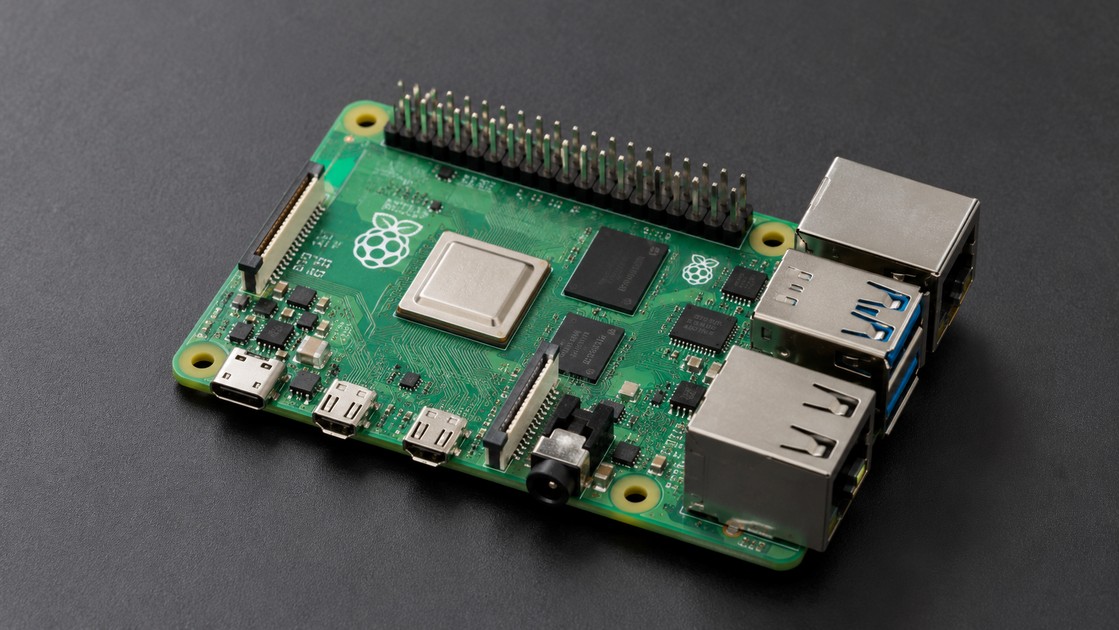
前面 19 章,我們已經分別學習了 Raspberry Pi OS、Linux、Python、GPIO、DHT11 / DHT22、LCD1602 I²C、LED、蜂鳴器、Relay、Camera、Flask、MQTT、SQLite 與 SSH。
現在來到整套 Raspberry Pi 教學系列最重要的一章。
這一次不再只控制一顆 LED,也不是單獨讀取一顆感測器,而是要把前面學過的技術真正整合成一套:
Raspberry Pi 智慧環境監控中心
完整系統將具備:
- 讀取室內溫度、濕度
- LCD1602 即時顯示
- 溫度過高 LED 警示
- 蜂鳴器高溫警報
- 自動啟動 Relay/風扇
- SQLite 記錄歷史資料
- Flask Web 顯示即時狀態
- 手機遠端控制風扇
- MQTT 發布 Sensor Data
- Camera 遠端拍照
- SSH 遠端維護
- systemd 開機自動啟動
最後整套系統會形成:
Raspberry Pi
                              │
        ┌─────────────────────┼─────────────────────┐
        │                     │                     │
      DHT22               Camera Module           GPIO
        │                     │                     │
        ▼                     ▼            ┌────────┼────────┐
 Temperature/Humidity      Picamera2       LED    Buzzer   Relay
        │                                           │
        │                                          Fan
        │
        └─────────────────────┬─────────────────────┘
                              │
                            Python
                              │
        ┌──────────────┬──────┼───────┬──────────────┐
        │              │      │       │              │
        ▼              ▼      ▼       ▼              ▼
      LCD1602        SQLite  MQTT    Flask          Camera
        │              │      │       │              │
        ▼              ▼      ▼       ▼              ▼
 Local Display     History   IoT    Browser        Photo
                           Message   Dashboard
                                      │
                                      ▼
                                  Smartphone
這就是一套完整的:
Raspberry Pi IoT Edge Monitoring System。
一、本章學習目標
完成本章後,你將能夠把前面學過的技術真正整合,而不只是個別測試。
核心技術包括:
- Raspberry Pi
- Raspberry Pi OS
- Linux
- Python
- GPIO
- DHT11 / DHT22
- LCD1602 I²C
- LED
- Active Buzzer
- Relay Module
- Fan
- Camera Module
- Picamera2
- Flask
- HTML
- JavaScript
- HTTP
- MQTT
- Mosquitto
- SQLite
- SSH
- systemd
- Background Thread
- IoT Dashboard
- Database Logging
本章最終完成:
Raspberry Pi 智慧環境監控與遠端控制系統
二、完整系統功能
我們先把需求定義清楚。
功能 1:溫度與濕度
DHT11 / DHT22:
DHT22
  │
  ├── Temperature
  │
  └── Humidity
Python 每隔數秒讀取一次。
功能 2:LCD1602
LCD 即時顯示:
T:28.5C H:67%
Fan:AUTO OFF
不用開手機,也可以直接從 Raspberry Pi 看見目前環境狀態。
功能 3:LED 高溫警示
當:
Temperature >= 30°CLED:
ON表示進入高溫狀態。
三、蜂鳴器警報
當溫度超過設定值:
Temperature >= 30°C蜂鳴器啟動:
Buzzer ONWeb Dashboard 另外提供:
Mute功能,可以暫時停止聲音警報。
四、自動風扇
當高溫時:
DHT22
  │
  ▼
Temperature >= 30°C
  │
  ▼
Python
  │
  ▼
Relay ON
  │
  ▼
Fan ON
當溫度下降:
Temperature <= 29°C風扇關閉。
也就是加入:
1°C Hysteresis避免溫度剛好在 30°C 附近時 Relay 不斷:
ON
OFF
ON
OFF
五、風扇 AUTO / ON / OFF
這一次不只提供自動控制。
我們設計三種模式:
AUTO
ON
OFF
AUTO
依溫度自動控制。
ON
強制開啟 Relay/風扇。
OFF
強制關閉。
手機 Dashboard 可以直接切換。
六、SQLite 歷史資料
每隔固定時間將:
Timestamp
Temperature
Humidity
Alarm
Fan Mode
Fan Status
寫進:
environment.db因此即使 Raspberry Pi 重新開機,歷史資料仍然可以繼續查詢。
SQLite 是自包含式 SQL Database Engine,很適合這種 Raspberry Pi 本機資料保存用途。
七、Flask Web Dashboard
手機開啟:
http://Raspberry-Pi-IP:8000可以看到:
Raspberry Pi
Smart Environment Center

Temperature
28.5 °C

Humidity
67.2 %

Alarm
NORMAL

Fan
AUTO / OFF

[ AUTO ]
[ FAN ON ]
[ FAN OFF ]

[ MUTE BUZZER ]

[ TAKE PHOTO ]
這就是 Raspberry Pi 的:
Web HMI。
八、MQTT IoT
Sensor Data 同時發布:
home/room1/temperature

home/room1/humidity

home/room1/environment
設備狀態:
home/room1/fan/status

home/room1/alarm/status
控制:
home/room1/fan/set

home/room1/buzzer/set

home/room1/camera/set
因此其他:
Raspberry Pi
ESP32
Notebook
Server
Home Assistant
IoT Dashboard
都能透過 MQTT 接收資料或發布控制命令。
九、Camera 遠端拍照
Web:
[ TAKE PHOTO ]按下後:
Browser
   │
   ▼
Flask
   │
   ▼
Picamera2
   │
   ▼
Camera Module
   │
   ▼
20260818_090000.jpg
MQTT 也能:
Topic:
home/room1/camera/set

Payload:
PHOTO
觸發 Camera。
目前 Raspberry Pi OS 的 Camera 軟體架構以 rpicam-* 與 Picamera2 為主;Picamera2 是 Raspberry Pi 官方提供的 Python Camera Library。
十、SSH 遠端管理
即使沒有:
Keyboard
Mouse
Monitor
仍然可以從其他電腦:
ssh username@192.168.1.100進入 Raspberry Pi。
Raspberry Pi OS 預設不啟用 SSH Server,需要在 Imager、系統設定或其他官方支援方式中啟用。
十一、systemd 自動啟動
最後把 Python 系統變成:
smart-environment.serviceRaspberry Pi 開機:
Power ON
   │
   ▼
Raspberry Pi OS
   │
   ▼
systemd
   │
   ▼
smart-environment.service
   │
   ▼
Python
   │
   ├── DHT22
   ├── LCD
   ├── GPIO
   ├── Camera
   ├── MQTT
   ├── SQLite
   └── Web Server
不需要每次 SSH 進去再手動:
python app.py十二、準備材料
完整專題建議準備:
| 材料 | 數量 |
|---|---|
| Raspberry Pi 4 / 5 | 1 |
| microSD / SSD | 1 |
| Raspberry Pi OS | 1 |
| DHT11 / DHT22 Module | 1 |
| LCD1602 I²C Module | 1 |
| LED | 1 |
| 220Ω~330Ω 電阻 | 1 |
| Active Buzzer | 1 |
| Relay Module | 1 |
| 小型 DC Fan | 1 |
| Raspberry Pi Camera | 1 |
| Breadboard | 1 |
| Dupont Wire | 若干 |
| Raspberry Pi 電源 | 1 |
十三、安全提醒:Relay 與風扇
本章建議使用:
低電壓 DC Fan進行實驗。
不要為了學習本章就直接操作:
110V / 220V AC市電。
如果控制市電設備,Relay 絕緣、保險絲、接地、外殼、線材規格與電氣安全都必須另外設計。
十四、GPIO 規劃
本章統一使用 BCM GPIO 編號:
| 功能 | BCM GPIO |
|---|---|
| DHT11 / DHT22 DATA | GPIO4 |
| Warning LED | GPIO17 |
| Relay | GPIO27 |
| Buzzer | GPIO22 |
| LCD1602 SDA | GPIO2 |
| LCD1602 SCL | GPIO3 |
| Camera | CSI |
因此:
GPIO4  → DHT22

GPIO17 → LED

GPIO22 → Buzzer

GPIO27 → Relay

GPIO2  → I²C SDA

GPIO3  → I²C SCL
十五、完整接線架構
Raspberry Pi
                             │
       ┌─────────────────────┼─────────────────────┐
       │                     │                     │
     GPIO4                 GPIO17                GPIO22
       │                     │                     │
       ▼                     ▼                     ▼
     DHT22                Resistor              Buzzer
       │                     │
       │                    LED
       │
       │
     GPIO27
       │
       ▼
     Relay
       │
       ▼
      Fan


      GPIO2 SDA ─────────── LCD1602 I²C

      GPIO3 SCL ─────────── LCD1602 I²C

      CSI ───────────────── Camera Module
十六、LCD1602 I²C 接線
常見 I²C LCD1602:
| LCD | Raspberry Pi |
|---|---|
| VCC | 依模組規格供電 |
| GND | GND |
| SDA | GPIO2 / SDA |
| SCL | GPIO3 / SCL |
先使用:
i2cdetect -y 1查看 Address。
常見會看到:
27或:
3f因此程式預設:
0x27如果你的 LCD 是:
0x3F只需要修改設定。
十七、Relay Active High / Active Low
這一點非常重要。
不同 Relay Module 有:
Active HIGH也有:
Active LOW因此本章程式不把 Relay 電位邏輯寫死。
使用:
RELAY_ACTIVE_HIGH設定。
常見 Active-Low Relay 可以設定:
RELAY_ACTIVE_HIGH=0如果你的 Relay 是 Active-High:
RELAY_ACTIVE_HIGH=1十八、建立專案目錄
先執行:
mkdir -p ~/smart_env進入:
cd ~/smart_env建立:
mkdir -p templates
mkdir -p data
mkdir -p photos
最後:
smart_env/
│
├── app.py
├── smart_env.env
│
├── templates/
│   └── index.html
│
├── data/
│   └── environment.db
│
├── photos/
│
└── venv/
十九、安裝系統套件
先更新:
sudo apt update安裝基本套件:
sudo apt install -y \
python3-full \
python3-venv \
python3-picamera2 \
python3-gpiozero \
i2c-tools \
mosquitto \
mosquitto-clients
Picamera2 可以直接操作 Raspberry Pi Camera;Bookworm 之後 Raspberry Pi Camera Command Line 工具則使用 rpicam-* 名稱。
二十、建立 Python Virtual Environment
執行:
cd ~/smart_env建立:
python3 -m venv \
--system-site-packages \
venv
使用:
--system-site-packages是因為我們希望 Virtual Environment 可以使用 Raspberry Pi OS 已安裝的:
Picamera2
GPIO Zero
等系統 Python Package。
啟用:
source venv/bin/activate二十一、安裝 Python Package
執行:
python -m pip install \
flask \
waitress \
paho-mqtt \
adafruit-circuitpython-dht \
RPLCD \
smbus2
本章使用:
Flask建立 Web Application。
使用:
Waitress提供 WSGI Server。
Flask 官方明確提醒 Development Server 不應直接作為 Production Server;正式部署應使用適合的 WSGI Server。
二十二、為什麼本章不用 app.run() 當最終 Server?
開發時經常看到:
app.run()但最終系統需要:
長時間運作
+
systemd 管理
因此本章最後改用:
Waitress流程:
Browser
   │
   ▼
Waitress
   │
   ▼
Flask
   │
   ▼
Python Hardware Controller
這樣比直接把 Flask Development Server 當正式 Server 更合理。
二十三、建立環境設定檔
建立:
nano ~/smart_env/smart_env.env內容:
DHT_TYPE=DHT22

HIGH_TEMP=30.0
TEMP_HYSTERESIS=1.0

LCD_ENABLED=1
LCD_ADDRESS=0x27

RELAY_ACTIVE_HIGH=0

MQTT_BROKER=127.0.0.1
MQTT_PORT=1883
MQTT_USERNAME=
MQTT_PASSWORD=

WEB_HOST=0.0.0.0
WEB_PORT=8000

SENSOR_INTERVAL=5
DATABASE_INTERVAL=60
MQTT_INTERVAL=10
如果使用 DHT11:
DHT_TYPE=DHT11二十四、系統控制策略
我們將使用:
HIGH_TEMP=30.0以及:
TEMP_HYSTERESIS=1.0因此:
Temperature >= 30.0
        │
        ▼
     ALARM ON
        │
        ├── LED ON
        ├── Buzzer ON
        └── AUTO Fan ON
解除:
Temperature <= 29.0
        │
        ▼
     ALARM OFF
        │
        ├── LED OFF
        ├── Buzzer OFF
        └── AUTO Fan OFF
二十五、為什麼需要 Shared State?
我們同時有:
Sensor Thread
MQTT Thread
Web Thread
LCD Thread
它們都需要知道:
temperature
humidity
alarm
fan
camera
所以建立:
state = {}保存目前狀態。
再利用:
threading.RLock()保護多 Thread 存取。
二十六、完整 Python 主程式
建立:
nano ~/smart_env/app.py輸入以下完整程式:
import os
import json
import time
import atexit
import sqlite3
import threading
from datetime import datetime
from pathlib import Path
from flask import (
Flask,
jsonify,
render_template,
request,
send_from_directory
)
from waitress import serve
from gpiozero import (
LED,
Buzzer,
OutputDevice
)
import board
import adafruit_dht
import paho.mqtt.client as mqtt
# =========================================================
# Optional LCD
# =========================================================
try:
from RPLCD.i2c import CharLCD
except Exception:
CharLCD = None
# =========================================================
# Optional Camera
# =========================================================
try:
from picamera2 import Picamera2
except Exception:
Picamera2 = None
# =========================================================
# Path
# =========================================================
BASE_DIR = Path(__file__).resolve().parent
DATA_DIR = BASE_DIR / "data"
PHOTO_DIR = BASE_DIR / "photos"
DB_FILE = DATA_DIR / "environment.db"
DATA_DIR.mkdir(
parents=True,
exist_ok=True
)
PHOTO_DIR.mkdir(
parents=True,
exist_ok=True
)
# =========================================================
# Load simple environment file
# =========================================================
ENV_FILE = BASE_DIR / "smart_env.env"
def load_env_file(path):
if not path.exists():
return
with open(
path,
"r",
encoding="utf-8"
) as file:
for raw_line in file:
line = raw_line.strip()
if not line:
continue
if line.startswith("#"):
continue
if "=" not in line:
continue
key, value = line.split(
"=",
1
)
os.environ.setdefault(
key.strip(),
value.strip()
)
load_env_file(
ENV_FILE
)
# =========================================================
# Helper
# =========================================================
def env_bool(
name,
default=False
):
value = os.getenv(
name,
"1" if default else "0"
)
return value.lower() in (
"1",
"true",
"yes",
"on"
)
def now_text():
return (
datetime.now()
.astimezone()
.isoformat(
timespec="seconds"
)
)
# =========================================================
# Configuration
# =========================================================
DHT_TYPE = os.getenv(
"DHT_TYPE",
"DHT22"
).upper()
HIGH_TEMP = float(
os.getenv(
"HIGH_TEMP",
"30.0"
)
)
TEMP_HYSTERESIS = float(
os.getenv(
"TEMP_HYSTERESIS",
"1.0"
)
)
SENSOR_INTERVAL = float(
os.getenv(
"SENSOR_INTERVAL",
"5"
)
)
DATABASE_INTERVAL = float(
os.getenv(
"DATABASE_INTERVAL",
"60"
)
)
MQTT_INTERVAL = float(
os.getenv(
"MQTT_INTERVAL",
"10"
)
)
LCD_ENABLED = env_bool(
"LCD_ENABLED",
True
)
LCD_ADDRESS = int(
os.getenv(
"LCD_ADDRESS",
"0x27"
),
0
)
RELAY_ACTIVE_HIGH = env_bool(
"RELAY_ACTIVE_HIGH",
False
)
MQTT_BROKER = os.getenv(
"MQTT_BROKER",
"127.0.0.1"
)
MQTT_PORT = int(
os.getenv(
"MQTT_PORT",
"1883"
)
)
MQTT_USERNAME = os.getenv(
"MQTT_USERNAME",
""
)
MQTT_PASSWORD = os.getenv(
"MQTT_PASSWORD",
""
)
WEB_HOST = os.getenv(
"WEB_HOST",
"0.0.0.0"
)
WEB_PORT = int(
os.getenv(
"WEB_PORT",
"8000"
)
)
# =========================================================
# GPIO
# =========================================================
WARNING_LED_GPIO = 17
RELAY_GPIO = 27
BUZZER_GPIO = 22
warning_led = LED(
WARNING_LED_GPIO
)
buzzer = Buzzer(
BUZZER_GPIO
)
relay = OutputDevice(
RELAY_GPIO,
active_high=RELAY_ACTIVE_HIGH,
initial_value=False
)
# =========================================================
# Shared State
# =========================================================
state_lock = threading.RLock()
state = {
"temperature": None,
"humidity": None,
"sensor_time": None,
"sensor_error": None,
"alarm": False,
"fan_mode": "AUTO",
"fan_on": False,
"buzzer_muted": False,
"mqtt_connected": False,
"camera_ready": False,
"last_photo": None,
"last_photo_time": None
}
stop_event = threading.Event()
# =========================================================
# SQLite
# =========================================================
def database_connect():
connection = sqlite3.connect(
DB_FILE,
timeout=5
)
connection.execute(
"PRAGMA busy_timeout = 5000"
)
return connection
def initialize_database():
with database_connect() as connection:
connection.execute(
"PRAGMA journal_mode=WAL"
)
connection.execute(
"""
CREATE TABLE IF NOT EXISTS
environment_data
(
id INTEGER
PRIMARY KEY
AUTOINCREMENT,
timestamp TEXT
NOT NULL,
temperature REAL,
humidity REAL,
alarm INTEGER
NOT NULL,
fan_mode TEXT
NOT NULL,
fan_on INTEGER
NOT NULL
)
"""
)
connection.execute(
"""
CREATE INDEX IF NOT EXISTS
idx_environment_timestamp
ON environment_data(
timestamp
)
"""
)
connection.execute(
"""
CREATE TABLE IF NOT EXISTS
system_events
(
id INTEGER
PRIMARY KEY
AUTOINCREMENT,
timestamp TEXT
NOT NULL,
event_type TEXT
NOT NULL,
message TEXT
)
"""
)
def save_environment():
with state_lock:
temperature = state[
"temperature"
]
humidity = state[
"humidity"
]
alarm = state[
"alarm"
]
fan_mode = state[
"fan_mode"
]
fan_on = state[
"fan_on"
]
if temperature is None:
return
if humidity is None:
return
with database_connect() as connection:
connection.execute(
"""
INSERT INTO environment_data
(
timestamp,
temperature,
humidity,
alarm,
fan_mode,
fan_on
)
VALUES
(
?,
?,
?,
?,
?,
?
)
""",
(
now_text(),
temperature,
humidity,
int(alarm),
fan_mode,
int(fan_on)
)
)
def save_event(
event_type,
message=""
):
try:
with database_connect() as connection:
connection.execute(
"""
INSERT INTO system_events
(
timestamp,
event_type,
message
)
VALUES
(
?,
?,
?
)
""",
(
now_text(),
event_type,
message
)
)
except Exception as error:
print(
"Event DB error:",
error
)
# =========================================================
# DHT
# =========================================================
def create_dht():
if DHT_TYPE == "DHT11":
return adafruit_dht.DHT11(
board.D4,
use_pulseio=False
)
return adafruit_dht.DHT22(
board.D4,
use_pulseio=False
)
dht = create_dht()
# =========================================================
# LCD1602
# =========================================================
lcd = None
lcd_lock = threading.Lock()
def initialize_lcd():
global lcd
if not LCD_ENABLED:
return
if CharLCD is None:
print(
"RPLCD unavailable"
)
return
try:
lcd = CharLCD(
i2c_expander="PCF8574",
address=LCD_ADDRESS,
port=1,
cols=16,
rows=2,
charmap="A00",
auto_linebreaks=False
)
lcd.clear()
print(
"LCD ready:",
hex(LCD_ADDRESS)
)
except Exception as error:
lcd = None
print(
"LCD init error:",
error
)
def lcd_write(
line1,
line2
):
if lcd is None:
return
try:
with lcd_lock:
line1 = (
str(line1)[:16]
.ljust(16)
)
line2 = (
str(line2)[:16]
.ljust(16)
)
lcd.cursor_pos = (
0,
0
)
lcd.write_string(
line1
)
lcd.cursor_pos = (
1,
0
)
lcd.write_string(
line2
)
except Exception as error:
print(
"LCD error:",
error
)
# =========================================================
# Camera
# =========================================================
camera = None
camera_lock = threading.Lock()
def initialize_camera():
global camera
if Picamera2 is None:
print(
"Picamera2 unavailable"
)
return
try:
camera = Picamera2()
config = (
camera
.create_still_configuration(
main={
"size":
(
1920,
1080
)
}
)
)
camera.configure(
config
)
camera.start()
time.sleep(2)
with state_lock:
state[
"camera_ready"
] = True
print(
"Camera ready"
)
except Exception as error:
camera = None
with state_lock:
state[
"camera_ready"
] = False
print(
"Camera init error:",
error
)
def capture_photo(
source="web"
):
if camera is None:
raise RuntimeError(
"Camera is not ready"
)
filename = (
datetime.now()
.strftime(
"%Y%m%d_%H%M%S.jpg"
)
)
filepath = (
PHOTO_DIR
/ filename
)
with camera_lock:
camera.capture_file(
str(filepath)
)
with state_lock:
state[
"last_photo"
] = filename
state[
"last_photo_time"
] = now_text()
save_event(
"CAMERA_PHOTO",
f"{source}: {filename}"
)
return filename
# =========================================================
# Hardware Control
# =========================================================
def set_fan_output(
on
):
if on:
relay.on()
else:
relay.off()
with state_lock:
state[
"fan_on"
] = bool(on)
def update_alarm_control():
with state_lock:
temperature = state[
"temperature"
]
alarm = state[
"alarm"
]
fan_mode = state[
"fan_mode"
]
muted = state[
"buzzer_muted"
]
if temperature is None:
return
new_alarm = alarm
if not alarm:
if temperature >= HIGH_TEMP:
new_alarm = True
else:
if temperature <= (
HIGH_TEMP
-
TEMP_HYSTERESIS
):
new_alarm = False
if new_alarm != alarm:
save_event(
"ALARM_ON"
if new_alarm
else "ALARM_OFF",
(
"Temperature "
f"{temperature:.1f} C"
)
)
with state_lock:
state[
"alarm"
] = new_alarm
# Warning LED
if new_alarm:
warning_led.on()
else:
warning_led.off()
# Buzzer
if (
new_alarm
and
not muted
):
buzzer.on()
else:
buzzer.off()
# Relay / Fan
if fan_mode == "AUTO":
set_fan_output(
new_alarm
)
elif fan_mode == "ON":
set_fan_output(
True
)
elif fan_mode == "OFF":
set_fan_output(
False
)
def set_fan_mode(
mode
):
mode = (
mode
.strip()
.upper()
)
if mode not in (
"AUTO",
"ON",
"OFF"
):
raise ValueError(
"Invalid fan mode"
)
with state_lock:
state[
"fan_mode"
] = mode
save_event(
"FAN_MODE",
mode
)
update_alarm_control()
def set_buzzer_muted(
muted
):
with state_lock:
state[
"buzzer_muted"
] = bool(muted)
save_event(
"BUZZER_MUTE"
if muted
else "BUZZER_UNMUTE"
)
update_alarm_control()
# =========================================================
# Sensor Thread
# =========================================================
def sensor_worker():
last_db_time = 0
last_mqtt_time = 0
while not stop_event.is_set():
try:
temperature = (
dht.temperature
)
humidity = (
dht.humidity
)
if (
temperature is not None
and
humidity is not None
):
with state_lock:
state[
"temperature"
] = round(
temperature,
1
)
state[
"humidity"
] = round(
humidity,
1
)
state[
"sensor_time"
] = now_text()
state[
"sensor_error"
] = None
update_alarm_control()
current = (
time.monotonic()
)
if (
current
-
last_db_time
>=
DATABASE_INTERVAL
):
save_environment()
last_db_time = (
current
)
if (
current
-
last_mqtt_time
>=
MQTT_INTERVAL
):
mqtt_publish_environment()
last_mqtt_time = (
current
)
except RuntimeError as error:
with state_lock:
state[
"sensor_error"
] = str(error)
print(
"DHT temporary error:",
error
)
except Exception as error:
with state_lock:
state[
"sensor_error"
] = str(error)
print(
"Sensor error:",
error
)
stop_event.wait(
SENSOR_INTERVAL
)
# =========================================================
# LCD Thread
# =========================================================
def lcd_worker():
while not stop_event.is_set():
with state_lock:
temperature = state[
"temperature"
]
humidity = state[
"humidity"
]
fan_mode = state[
"fan_mode"
]
fan_on = state[
"fan_on"
]
if temperature is None:
line1 = (
"Waiting Sensor"
)
else:
line1 = (
f"T:{temperature:.1f}C "
f"H:{humidity:.0f}%"
)
fan_text = (
"ON"
if fan_on
else "OFF"
)
line2 = (
f"{fan_mode} FAN:{fan_text}"
)
lcd_write(
line1,
line2
)
stop_event.wait(
1
)
# =========================================================
# MQTT
# =========================================================
MQTT_BASE = (
"home/room1"
)
TEMP_TOPIC = (
MQTT_BASE
+
"/temperature"
)
HUMIDITY_TOPIC = (
MQTT_BASE
+
"/humidity"
)
ENV_TOPIC = (
MQTT_BASE
+
"/environment"
)
FAN_SET_TOPIC = (
MQTT_BASE
+
"/fan/set"
)
FAN_STATUS_TOPIC = (
MQTT_BASE
+
"/fan/status"
)
ALARM_STATUS_TOPIC = (
MQTT_BASE
+
"/alarm/status"
)
BUZZER_SET_TOPIC = (
MQTT_BASE
+
"/buzzer/set"
)
CAMERA_SET_TOPIC = (
MQTT_BASE
+
"/camera/set"
)
mqtt_client = mqtt.Client(
mqtt.CallbackAPIVersion.VERSION2
)
def mqtt_on_connect(
client,
userdata,
flags,
reason_code,
properties
):
print(
"MQTT connected:",
reason_code
)
with state_lock:
state[
"mqtt_connected"
] = True
client.subscribe(
FAN_SET_TOPIC
)
client.subscribe(
BUZZER_SET_TOPIC
)
client.subscribe(
CAMERA_SET_TOPIC
)
mqtt_publish_environment()
def mqtt_on_disconnect(
client,
userdata,
disconnect_flags,
reason_code,
properties
):
with state_lock:
state[
"mqtt_connected"
] = False
print(
"MQTT disconnected:",
reason_code
)
def mqtt_on_message(
client,
userdata,
message
):
payload = (
message
.payload
.decode(
"utf-8",
errors="replace"
)
.strip()
.upper()
)
print(
"MQTT:",
message.topic,
payload
)
try:
if (
message.topic
==
FAN_SET_TOPIC
):
set_fan_mode(
payload
)
elif (
message.topic
==
BUZZER_SET_TOPIC
):
if payload in (
"MUTE",
"OFF"
):
set_buzzer_muted(
True
)
elif payload in (
"UNMUTE",
"ON"
):
set_buzzer_muted(
False
)
elif (
message.topic
==
CAMERA_SET_TOPIC
):
if payload == "PHOTO":
threading.Thread(
target=capture_photo,
args=("mqtt",),
daemon=True
).start()
except Exception as error:
print(
"MQTT command error:",
error
)
def mqtt_publish_environment():
with state_lock:
snapshot = dict(
state
)
temperature = snapshot[
"temperature"
]
humidity = snapshot[
"humidity"
]
if temperature is not None:
mqtt_client.publish(
TEMP_TOPIC,
str(temperature),
retain=True
)
if humidity is not None:
mqtt_client.publish(
HUMIDITY_TOPIC,
str(humidity),
retain=True
)
payload = {
"timestamp":
snapshot[
"sensor_time"
],
"temperature":
temperature,
"humidity":
humidity,
"alarm":
snapshot[
"alarm"
],
"fan_mode":
snapshot[
"fan_mode"
],
"fan_on":
snapshot[
"fan_on"
]
}
mqtt_client.publish(
ENV_TOPIC,
json.dumps(
payload,
ensure_ascii=False
),
retain=True
)
mqtt_client.publish(
FAN_STATUS_TOPIC,
json.dumps(
{
"mode":
snapshot[
"fan_mode"
],
"on":
snapshot[
"fan_on"
]
}
),
retain=True
)
mqtt_client.publish(
ALARM_STATUS_TOPIC,
"ALARM"
if snapshot[
"alarm"
]
else "NORMAL",
retain=True
)
def initialize_mqtt():
mqtt_client.on_connect = (
mqtt_on_connect
)
mqtt_client.on_disconnect = (
mqtt_on_disconnect
)
mqtt_client.on_message = (
mqtt_on_message
)
mqtt_client.reconnect_delay_set(
min_delay=1,
max_delay=30
)
if MQTT_USERNAME:
mqtt_client.username_pw_set(
MQTT_USERNAME,
MQTT_PASSWORD
)
mqtt_client.connect_async(
MQTT_BROKER,
MQTT_PORT,
60
)
mqtt_client.loop_start()
# =========================================================
# Flask
# =========================================================
app = Flask(
__name__
)
@app.get("/")
def index():
return render_template(
"index.html"
)
@app.get("/api/status")
def api_status():
with state_lock:
snapshot = dict(
state
)
snapshot[
"high_temp"
] = HIGH_TEMP
snapshot[
"hysteresis"
] = TEMP_HYSTERESIS
return jsonify(
snapshot
)
@app.post("/api/fan")
def api_fan():
data = (
request.get_json(
silent=True
)
or
request.form
)
mode = data.get(
"mode",
""
)
try:
set_fan_mode(
mode
)
mqtt_publish_environment()
return jsonify(
{
"ok": True,
"mode": mode.upper()
}
)
except ValueError as error:
return jsonify(
{
"ok": False,
"error": str(error)
}
), 400
@app.post("/api/buzzer")
def api_buzzer():
data = (
request.get_json(
silent=True
)
or
request.form
)
action = (
data.get(
"action",
""
)
.upper()
)
if action == "MUTE":
set_buzzer_muted(
True
)
elif action == "UNMUTE":
set_buzzer_muted(
False
)
else:
return jsonify(
{
"ok": False,
"error":
"Invalid action"
}
), 400
return jsonify(
{
"ok": True
}
)
@app.post("/api/camera")
def api_camera():
try:
filename = capture_photo(
"web"
)
return jsonify(
{
"ok": True,
"filename": filename,
"url":
"/photos/"
+
filename
}
)
except Exception as error:
return jsonify(
{
"ok": False,
"error": str(error)
}
), 500
@app.get("/photos/<path:filename>")
def photo_file(
filename
):
return send_from_directory(
PHOTO_DIR,
filename
)
@app.get("/api/history")
def api_history():
limit = request.args.get(
"limit",
default=50,
type=int
)
limit = max(
1,
min(
limit,
500
)
)
with database_connect() as connection:
cursor = connection.execute(
"""
SELECT
id,
timestamp,
temperature,
humidity,
alarm,
fan_mode,
fan_on
FROM environment_data
ORDER BY id DESC
LIMIT ?
""",
(
limit,
)
)
rows = cursor.fetchall()
result = []
for row in rows:
result.append(
{
"id": row[0],
"timestamp":
row[1],
"temperature":
row[2],
"humidity":
row[3],
"alarm":
bool(
row[4]
),
"fan_mode":
row[5],
"fan_on":
bool(
row[6]
)
}
)
return jsonify(
result
)
# =========================================================
# Start
# =========================================================
def start_services():
initialize_database()
initialize_lcd()
initialize_camera()
initialize_mqtt()
threading.Thread(
target=sensor_worker,
daemon=True
).start()
threading.Thread(
target=lcd_worker,
daemon=True
).start()
save_event(
"SYSTEM_START",
"Smart environment started"
)
# =========================================================
# Cleanup
# =========================================================
cleanup_done = False
def cleanup():
global cleanup_done
if cleanup_done:
return
cleanup_done = True
print(
"Cleaning up..."
)
stop_event.set()
try:
mqtt_client.loop_stop()
mqtt_client.disconnect()
except Exception:
pass
try:
warning_led.off()
buzzer.off()
relay.off()
except Exception:
pass
try:
dht.exit()
except Exception:
pass
try:
if camera is not None:
camera.stop()
camera.close()
except Exception:
pass
try:
if lcd is not None:
lcd.clear()
except Exception:
pass
atexit.register(
cleanup
)
# =========================================================
# Main
# =========================================================
if __name__ == "__main__":
print(
"Raspberry Pi "
"Smart Environment Center"
)
print(
"Database:",
DB_FILE
)
print(
"Photos:",
PHOTO_DIR
)
start_services()
serve(
app,
host=WEB_HOST,
port=WEB_PORT,
threads=4
)二十七、這個 Python 程式做了什麼?
主程式可以拆成:
app.py
 │
 ├── Configuration
 │
 ├── GPIO
 │
 ├── DHT Sensor
 │
 ├── LCD1602
 │
 ├── Camera
 │
 ├── SQLite
 │
 ├── MQTT
 │
 ├── Flask
 │
 ├── Sensor Thread
 │
 ├── LCD Thread
 │
 └── Cleanup
不是把所有功能寫在:
while True裡面。
這是從「練習程式」走向「系統程式」的重要改變。
二十八、SQLite 使用 WAL
程式初始化:
connection.execute(
    "PRAGMA journal_mode=WAL"
)
原因是我們同時可能有:
Sensor Thread → INSERT

Flask → SELECT
SQLite 官方指出 WAL 可以改善 Reader 與 Writer 的並行情況;不過 SQLite 同一時間仍然只會有一個 Write Transaction,因此仍應避免長時間持有寫入 Transaction。
本章每次:
Connect
→ INSERT
→ Commit
→ Close
都很短。
二十九、SQLite Parameterized Query
我們沒有把資料直接拼進 SQL。
而是:
VALUES
(
    ?,
    ?,
    ?,
    ?,
    ?,
    ?
)
然後傳入 Tuple。
Python 官方 sqlite3 文件建議使用 Placeholder / Parameter Substitution,而不是使用 String Formatting 把資料直接拼進 SQL。
三十、建立 Web Dashboard
建立:
nano ~/smart_env/templates/index.html輸入:
<!DOCTYPE html>
<html lang="zh-TW">
<head>
<meta charset="UTF-8">
<meta
name="viewport"
content="width=device-width, initial-scale=1.0"
>
<title>
Raspberry Pi 智慧環境監控中心
</title>
<style>
* {
box-sizing: border-box;
}
body {
margin: 0;
font-family:
Arial,
"Microsoft JhengHei",
sans-serif;
background: #f3f5f7;
color: #222;
}
header {
background: #222;
color: white;
padding: 24px;
text-align: center;
}
.container {
width: 94%;
max-width: 1100px;
margin: 30px auto;
}
.grid {
display: grid;
grid-template-columns:
repeat(
auto-fit,
minmax(
220px,
1fr
)
);
gap: 18px;
}
.card {
background: white;
padding: 24px;
border-radius: 14px;
box-shadow:
0 3px 14px
rgba(
0,
0,
0,
0.10
);
}
.title {
font-size: 15px;
color: #666;
}
.value {
margin-top: 8px;
font-size: 32px;
font-weight: bold;
}
.normal {
color: #16883d;
}
.alarm {
color: #d32626;
}
button {
border: 0;
border-radius: 8px;
padding: 13px 18px;
margin:
5px
3px;
font-size: 15px;
cursor: pointer;
}
.auto {
background: #1976d2;
color: white;
}
.on {
background: #1b9a4a;
color: white;
}
.off {
background: #d43b3b;
color: white;
}
.secondary {
background: #555;
color: white;
}
.photo {
max-width: 100%;
border-radius: 10px;
margin-top: 15px;
}
table {
width: 100%;
border-collapse: collapse;
margin-top: 15px;
}
th,
td {
padding: 10px;
border-bottom:
1px solid #ddd;
text-align: left;
}
.section {
margin-top: 25px;
}
.small {
color: #777;
font-size: 14px;
}
</style>
</head>
<body>
<header>
<h1>
Raspberry Pi
智慧環境監控中心
</h1>
<div>
Flask + MQTT + SQLite
+ Camera
</div>
</header>
<div class="container">
<div class="grid">
<div class="card">
<div class="title">
Temperature
</div>
<div
id="temperature"
class="value"
>
--
</div>
</div>
<div class="card">
<div class="title">
Humidity
</div>
<div
id="humidity"
class="value"
>
--
</div>
</div>
<div class="card">
<div class="title">
Alarm
</div>
<div
id="alarm"
class="value"
>
--
</div>
</div>
<div class="card">
<div class="title">
Fan
</div>
<div
id="fan"
class="value"
>
--
</div>
</div>
</div>
<div class="card section">
<h2>
Fan Control
</h2>
<button
class="auto"
onclick="fanMode('AUTO')"
>
AUTO
</button>
<button
class="on"
onclick="fanMode('ON')"
>
FAN ON
</button>
<button
class="off"
onclick="fanMode('OFF')"
>
FAN OFF
</button>
</div>
<div class="card section">
<h2>
Alarm Control
</h2>
<button
class="secondary"
onclick="buzzer('MUTE')"
>
MUTE BUZZER
</button>
<button
class="secondary"
onclick="buzzer('UNMUTE')"
>
UNMUTE
</button>
</div>
<div class="card section">
<h2>
Camera
</h2>
<button
class="auto"
onclick="takePhoto()"
>
TAKE PHOTO
</button>
<div
id="photoStatus"
class="small"
>
</div>
<img
id="photo"
class="photo"
style="display:none"
alt="Raspberry Pi Camera Photo"
>
</div>
<div class="card section">
<h2>
System Status
</h2>
<p>
MQTT:
<strong id="mqtt">
--
</strong>
</p>
<p>
Camera:
<strong id="camera">
--
</strong>
</p>
<p>
Fan Mode:
<strong id="fanMode">
--
</strong>
</p>
<p>
Sensor Time:
<strong id="sensorTime">
--
</strong>
</p>
<p>
Sensor Error:
<strong id="sensorError">
None
</strong>
</p>
</div>
<div class="card section">
<h2>
Latest History
</h2>
<table>
<thead>
<tr>
<th>
Time
</th>
<th>
Temp
</th>
<th>
Humidity
</th>
<th>
Fan
</th>
</tr>
</thead>
<tbody id="history">
</tbody>
</table>
</div>
</div>
<script>
async function loadStatus()
{
try
{
const response =
await fetch(
"/api/status"
);
const data =
await response.json();
document
.getElementById(
"temperature"
)
.textContent =
data.temperature === null
?
"--"
:
data.temperature
+ " °C";
document
.getElementById(
"humidity"
)
.textContent =
data.humidity === null
?
"--"
:
data.humidity
+ " %";
const alarm =
document.getElementById(
"alarm"
);
if (data.alarm)
{
alarm.textContent =
"ALARM";
alarm.className =
"value alarm";
}
else
{
alarm.textContent =
"NORMAL";
alarm.className =
"value normal";
}
document
.getElementById(
"fan"
)
.textContent =
data.fan_on
?
"ON"
:
"OFF";
document
.getElementById(
"fanMode"
)
.textContent =
data.fan_mode;
document
.getElementById(
"mqtt"
)
.textContent =
data.mqtt_connected
?
"CONNECTED"
:
"DISCONNECTED";
document
.getElementById(
"camera"
)
.textContent =
data.camera_ready
?
"READY"
:
"NOT READY";
document
.getElementById(
"sensorTime"
)
.textContent =
data.sensor_time
|| "--";
document
.getElementById(
"sensorError"
)
.textContent =
data.sensor_error
|| "None";
if (data.last_photo)
{
const photo =
document
.getElementById(
"photo"
);
photo.src =
"/photos/"
+
data.last_photo
+
"?t="
+
Date.now();
photo.style.display =
"block";
}
}
catch (error)
{
console.error(
error
);
}
}
async function fanMode(
mode
)
{
await fetch(
"/api/fan",
{
method:
"POST",
headers:
{
"Content-Type":
"application/json"
},
body:
JSON.stringify(
{
mode: mode
}
)
}
);
loadStatus();
}
async function buzzer(
action
)
{
await fetch(
"/api/buzzer",
{
method:
"POST",
headers:
{
"Content-Type":
"application/json"
},
body:
JSON.stringify(
{
action: action
}
)
}
);
loadStatus();
}
async function takePhoto()
{
const status =
document
.getElementById(
"photoStatus"
);
status.textContent =
"Capturing...";
const response =
await fetch(
"/api/camera",
{
method:
"POST"
}
);
const data =
await response.json();
if (data.ok)
{
status.textContent =
"Saved: "
+
data.filename;
const photo =
document
.getElementById(
"photo"
);
photo.src =
data.url
+
"?t="
+
Date.now();
photo.style.display =
"block";
}
else
{
status.textContent =
data.error;
}
}
async function loadHistory()
{
try
{
const response =
await fetch(
"/api/history?limit=20"
);
const rows =
await response.json();
const tbody =
document
.getElementById(
"history"
);
tbody.innerHTML =
"";
for (const row of rows)
{
const tr =
document
.createElement(
"tr"
);
tr.innerHTML =
"<td>"
+
row.timestamp
+
"</td>"
+
"<td>"
+
row.temperature
+
" °C</td>"
+
"<td>"
+
row.humidity
+
" %</td>"
+
"<td>"
+
(
row.fan_on
?
"ON"
:
"OFF"
)
+
"</td>";
tbody.appendChild(
tr
);
}
}
catch (error)
{
console.error(
error
);
}
}
loadStatus();
loadHistory();
setInterval(
loadStatus,
3000
);
setInterval(
loadHistory,
30000
);
</script>
</body>
</html>三十一、啟動 Mosquitto
執行:
sudo systemctl enable mosquitto啟動:
sudo systemctl start mosquitto查看:
systemctl status mosquitto本章主程式預設連:
127.0.0.1:1883也就是 Raspberry Pi 自己的 Broker。
三十二、為什麼這次 MQTT Broker 用 localhost?
因為:
Python
+
Mosquitto
都在同一台 Raspberry Pi。
所以最基本架構:
Python
   │
   ▼
127.0.0.1:1883
   │
   ▼
Mosquitto
即使外部 LAN Client 暫時不能直接連 Broker,Raspberry Pi 主程式本身仍可正常運作。
如果需要讓其他電腦直接連入 MQTT,再依第 18 章建立:
Listener
Authentication
ACL
TLS
Mosquitto 的 Listener 與 Authentication 行為應明確設定;官方也提供 Password、ACL 與其他驗證方式。
三十三、不要把 Anonymous MQTT 直接放到 Internet
如果設定:
allow_anonymous true再把:
1883Port Forward 到 Internet,就可能讓未授權使用者:
讀取溫度
控制風扇
控制蜂鳴器
觸發 Camera
本章的 IoT Control Topic 已經具備實際硬體控制能力,因此正式外網部署一定要加入:
Authentication
ACL
TLS
Firewall
VPN
三十四、先測試 Camera
在執行完整程式前:
rpicam-hello如果 Camera 正常,應可以測試。
拍照:
rpicam-jpeg \
-o test.jpg
Bookworm 之後 Raspberry Pi 官方 Camera Apps 使用 rpicam-* 名稱。
三十五、先測試 I²C LCD
執行:
i2cdetect -y 1例如:
0  1  2  3  4  5  6  7
20: -- -- -- -- -- -- -- 27
表示:
0x27如果得到:
3f修改:
LCD_ADDRESS=0x3F三十六、執行完整系統
啟用 Virtual Environment:
cd ~/smart_envsource venv/bin/activate執行:
python app.py可能看到:
Raspberry Pi Smart Environment Center

Database:
/home/user/smart_env/data/environment.db

Photos:
/home/user/smart_env/photos

LCD ready: 0x27

Camera ready

MQTT connected: Success
三十七、查 Raspberry Pi IP
執行:
hostname -I假設:
192.168.1.100三十八、手機開啟 Dashboard
手機與 Raspberry Pi 位於可以彼此通訊的 LAN。
Browser 輸入:
http://192.168.1.100:8000即可看到:
Raspberry Pi 智慧環境監控中心
三十九、Sensor Data Flow
完整溫溼度資料流:
DHT22
  │
  ▼
GPIO4
  │
  ▼
Python
  │
  ├── Shared State
  │
  ├── LCD1602
  │
  ├── Alarm Control
  │
  ├── SQLite
  │
  ├── MQTT
  │
  └── Flask
同一筆 Sensor Data 可以服務多個系統。
四十、LCD 資料流
DHT22
 │
 ▼
Python State
 │
 ▼
LCD Thread
 │
 ▼
LCD1602
例如:
T:28.5C H:67%
AUTO FAN:OFF
四十一、高溫警報流程
假設:
HIGH_TEMP = 30°C當:
Temperature = 30.2°C流程:
DHT22
 │
 ▼
30.2°C
 │
 ▼
Python
 │
 ▼
Alarm = True
 │
 ├── Warning LED ON
 │
 ├── Buzzer ON
 │
 ├── AUTO Fan ON
 │
 ├── SQLite
 │
 ├── MQTT ALARM
 │
 └── Web ALARM
這就是完整 Event Response。
四十二、遲滯 Hysteresis
如果:
HIGH_TEMP = 30°C
HYSTERESIS = 1°C
代表:
30°C
 │
 ▼
Alarm ON
但不會在:
29.9°C馬上關閉。
必須降到:
29°C才解除。
形成:
Temp >= 30
     │
     ▼
    ON
     │
  29~30
     │
 保持狀態
     │
Temp <= 29
     │
     ▼
    OFF
這能降低 Relay 在臨界值附近頻繁切換。
四十三、AUTO Fan
當:
Fan Mode = AUTO控制權交給:
Temperature Logic高溫:
Relay ON恢復:
Relay OFF四十四、Manual ON
手機:
[ FAN ON ]會:
POST /api/fan

mode = ON
Python:
fan_mode = ONRelay:
ON即使目前溫度只有:
25°C風扇仍會保持開啟。
四十五、Manual OFF
按:
[ FAN OFF ]則:
Fan Mode = OFFRelay 強制:
OFF注意:
如果風扇負責真正設備安全,不應允許遠端 OFF 覆蓋安全保護。
本章是教學環境,因此保留 Manual Override。
正式工業系統應另外設計:
Safety Interlock
Emergency Rule
Fail-Safe
四十六、恢復 AUTO
按:
[ AUTO ]控制權重新交給溫度演算法。
如果此刻:
Temperature = 31°C則風扇會立即:
ON如果:
Temperature = 26°C則:
OFF四十七、Buzzer Mute
高溫時:
Alarm = TrueLED 仍會保持警示。
Fan 仍正常工作。
但是按:
MUTE BUZZER只停止:
Buzzer而不是把整個 Alarm 清除。
這比把:
Alarm=False更合理。
四十八、SQLite Database Schema
本章建立:
environment_data欄位:
id
timestamp
temperature
humidity
alarm
fan_mode
fan_on
例如:
| id | timestamp | temp | hum | alarm | mode | fan |
|---|---|---|---|---|---|---|
| 1 | 08:00 | 28.5 | 67 | 0 | AUTO | 0 |
| 2 | 08:01 | 29.6 | 66 | 0 | AUTO | 0 |
| 3 | 08:02 | 30.2 | 65 | 1 | AUTO | 1 |
從這些資料就能看出:
什麼時候變熱?

什麼時候開始警報?

什麼時候 Fan ON?
四十九、System Event Table
另外建立:
system_events記錄:
SYSTEM_START

ALARM_ON

ALARM_OFF

FAN_MODE

BUZZER_MUTE

CAMERA_PHOTO
例如:
2026-08-18T09:10:00+08:00
ALARM_ON
Temperature 30.2 C
這讓 Database 不只是 Sensor Log,也具有:
Event Log。
五十、查看 SQLite
安裝:
sudo apt install -y sqlite3查看:
sqlite3 \
~/smart_env/data/environment.db
輸入:
.headers on.mode column然後:
SELECT *
FROM environment_data
ORDER BY id DESC
LIMIT 20;
五十一、查最高溫
SELECT
    MAX(temperature)
FROM environment_data;
五十二、查平均溫度
SELECT
    AVG(temperature)
FROM environment_data;
五十三、查高溫事件
SELECT
    timestamp,
    temperature,
    humidity,
    fan_mode,
    fan_on
FROM environment_data
WHERE alarm = 1
ORDER BY timestamp DESC;
五十四、MQTT 監控
另開 Terminal:
mosquitto_sub \
-h localhost \
-t 'home/room1/#' \
-v
可能看到:
home/room1/temperature 28.5

home/room1/humidity 67.2

home/room1/alarm/status NORMAL

home/room1/fan/status {"mode":"AUTO","on":false}
五十五、MQTT 環境 JSON
Topic:
home/room1/environment可能得到:
{
  "timestamp": "2026-08-18T09:20:00+08:00",
  "temperature": 28.5,
  "humidity": 67.2,
  "alarm": false,
  "fan_mode": "AUTO",
  "fan_on": false
}
這種 JSON 很適合:
Node-RED
Home Assistant
Server
Dashboard
Database Gateway
進一步處理。
五十六、MQTT 遠端控制 Fan
AUTO:
mosquitto_pub \
-h localhost \
-t home/room1/fan/set \
-m AUTO
Fan ON:
mosquitto_pub \
-h localhost \
-t home/room1/fan/set \
-m ON
Fan OFF:
mosquitto_pub \
-h localhost \
-t home/room1/fan/set \
-m OFF
五十七、MQTT 控制 Buzzer
靜音:
mosquitto_pub \
-h localhost \
-t home/room1/buzzer/set \
-m MUTE
恢復:
mosquitto_pub \
-h localhost \
-t home/room1/buzzer/set \
-m UNMUTE
五十八、MQTT Camera 拍照
輸入:
mosquitto_pub \
-h localhost \
-t home/room1/camera/set \
-m PHOTO
Python:
MQTT
 │
 ▼
camera/set
 │
 ▼
PHOTO
 │
 ▼
Picamera2
 │
 ▼
Capture
照片存到:
~/smart_env/photos/五十九、查看照片
執行:
ls -lh \
~/smart_env/photos
可能看到:
20260818_092000.jpg

20260818_092500.jpg

20260818_093000.jpg
六十、Web Camera Data Flow
手機:
TAKE PHOTO
     │
     ▼
POST /api/camera
     │
     ▼
Flask
     │
     ▼
capture_photo()
     │
     ▼
Picamera2
     │
     ▼
Camera
     │
     ▼
JPEG
     │
     ▼
Browser
因此第 16 章的 Camera 已正式整合到 Web IoT 系統。
六十一、為什麼 Camera 使用 Lock?
程式:
camera_lock是因為 Camera 可能同時被:
Web
MQTT
要求拍照。
如果兩個 Request 同時操作 Camera,可能造成競爭。
所以:
Web ──┐
      ├── Camera Lock ── Camera
MQTT ─┘
確保同一時間只進行一個 Camera Capture。
六十二、為什麼 GPIO 不應使用多個 Web Worker?
這套系統有:
GPIO
DHT
Camera
等硬體 Singleton。
如果開:
4 Processes每個 Process 都初始化:
GPIO17
GPIO27
Camera
容易產生衝突。
因此本章使用:
Single Process
+
Multiple Threads
架構。
六十三、完整 Thread 架構
Python Process
                         │
       ┌─────────────────┼─────────────────┐
       │                 │                 │
 Sensor Thread        MQTT Loop        Web Threads
       │                 │                 │
       ▼                 ▼                 ▼
     DHT22          Mosquitto          Flask API
       │
       ▼
Shared State
       │
       └──────────► LCD Thread
這種架構非常適合 Raspberry Pi 單機 IoT 專題。
六十四、Web API
目前建立:
GET
/api/status
取得目前狀態。
POST
/api/fan
控制 Fan。
POST
/api/buzzer
控制 Buzzer Mute。
POST
/api/camera
拍照。
GET
/api/history
取得 SQLite 歷史資料。
六十五、測試 Status API
在另一台電腦:
http://192.168.1.100:8000/api/status會得到 JSON:
{
  "temperature": 28.5,
  "humidity": 67.2,
  "alarm": false,
  "fan_mode": "AUTO",
  "fan_on": false,
  "buzzer_muted": false,
  "mqtt_connected": true,
  "camera_ready": true
}
這代表未來其他 Application 也可以呼叫 Raspberry Pi API。
六十六、查看 History API
例如:
http://192.168.1.100:8000/api/history?limit=20取得最近 20 筆資料。
因此架構又多了一層:
SQLite
  │
  ▼
Python
  │
  ▼
REST-like API
  │
  ▼
Other Application
六十七、SSH 遠端維護
先啟用 SSH。
Raspberry Pi 官方文件提供透過 Raspberry Pi Imager、系統介面或命令列等方式啟用 SSH。
也可以在 Raspberry Pi 設定工具中啟用 SSH。
之後查 IP:
hostname -I例如:
192.168.1.100六十八、Windows SSH
Windows Terminal / PowerShell:
ssh jason@192.168.1.100將:
jason換成 Raspberry Pi 實際 Username。
六十九、SSH 金鑰
長期管理建議改用:
SSH Key Authentication
Raspberry Pi 官方安全文件也建議使用 Key-Based Authentication 提高 SSH 安全性。
因此未來可以逐步從:
Password Login進階到:
SSH Public Key七十、建立 systemd Service
先確認 Username:
whoami假設:
jason則專案:
/home/jason/smart_env建立:
sudo nano \
/etc/systemd/system/smart-environment.service
七十一、systemd Service 內容
假設 Username 是:
jason內容:
[Unit]
Description=Raspberry Pi Smart Environment Center
After=network-online.target mosquitto.service
Wants=network-online.target


[Service]
Type=simple

User=jason

WorkingDirectory=/home/jason/smart_env

ExecStart=/home/jason/smart_env/venv/bin/python /home/jason/smart_env/app.py

Restart=on-failure

RestartSec=5


[Install]
WantedBy=multi-user.target
如果你的 Username 不叫:
jason必須全部換掉。
七十二、為什麼不要固定寫 pi?
很多舊 Raspberry Pi 教學會直接寫:
User=pi但現在安裝 Raspberry Pi OS 時 Username 可以由使用者自行設定。
所以應先:
whoami再把真正帳號放入:
User=以及:
/home/USERNAME/七十三、重新讀取 systemd 設定
建立 Service 後:
sudo systemctl daemon-reloadsystemd 官方文件指出修改 Unit 後可使用 daemon-reload 重新載入設定。
七十四、啟動 Service
sudo systemctl start \
smart-environment.service
查看:
systemctl status \
smart-environment.service
應該看到:
active (running)七十五、設定開機啟動
執行:
sudo systemctl enable \
smart-environment.service
Unit 使用:
WantedBy=multi-user.target可以讓 Service 被相應 Target 啟用;systemd 官方文件也以 WantedBy=multi-user.target 作為一般開機服務啟用方式。
七十六、重新開機驗收
執行:
sudo reboot等待 Raspberry Pi 回到網路。
然後手機直接開:
http://192.168.1.100:8000如果不需要 SSH 手動執行:
python app.py就可以開啟 Dashboard,代表:
開機自動啟動成功
七十七、查看 Service Log
如果沒有啟動:
journalctl \
-u smart-environment.service \
--no-pager
查看最近:
journalctl \
-u smart-environment.service \
-n 100 \
--no-pager
即時追蹤:
journalctl \
-u smart-environment.service \
-f
七十八、修改程式後如何重新啟動?
修改:
nano ~/smart_env/app.py然後:
sudo systemctl restart \
smart-environment.service
查看:
systemctl status \
smart-environment.service
七十九、完整開機流程
現在整個 Raspberry Pi 啟動:
Power ON
  │
  ▼
Firmware
  │
  ▼
Linux Kernel
  │
  ▼
Raspberry Pi OS
  │
  ▼
systemd
  │
  ├── Mosquitto
  │
  └── smart-environment.service
           │
           ▼
         app.py
           │
           ├── SQLite
           ├── LCD
           ├── Camera
           ├── MQTT
           ├── Sensor Thread
           └── Waitress / Flask
這已經是一個真正可以:
無螢幕獨立運作的 Raspberry Pi IoT Appliance。
八十、完整 Sensor Pipeline
DHT22
   │
   ▼
GPIO4
   │
   ▼
Python
   │
   ▼
Shared State
   │
   ├────► LCD
   │
   ├────► Alarm
   │
   ├────► Relay
   │
   ├────► SQLite
   │
   ├────► MQTT
   │
   └────► Flask
這是本章最重要的資料流。
八十一、完整控制 Pipeline
Web:
Smartphone
    │
    ▼
HTTP POST
    │
    ▼
Waitress
    │
    ▼
Flask
    │
    ▼
Python
    │
    ▼
GPIO
    │
    ▼
Relay
    │
    ▼
Fan
MQTT:
MQTT Client
    │
    ▼
Mosquitto
    │
    ▼
Python Subscriber
    │
    ▼
GPIO
    │
    ▼
Relay
本機自動控制:
DHT22
  │
  ▼
Temperature Logic
  │
  ▼
Relay
所以同一個設備同時具有:
Local Automatic Control

Web Control

MQTT Control
八十二、為什麼 Local Control 最重要?
假設:
Wi-Fi DownMQTT Remote Client 不能連。
手機 Web 也不能連。
但是:
DHT22
  │
  ▼
Python
  │
  ▼
Temperature Alarm
  │
  ▼
Relay Fan
仍然可以工作。
這是智慧設備很重要的設計觀念:
核心安全功能應盡量能在本機獨立運作
而不是網路斷線後,連最基本的溫度控制都停止。
八十三、系統三層架構
可以把本專案理解成三層。
Device Layer
DHT22
LED
Buzzer
Relay
Camera
LCD
Application Layer
Python
Control Logic
SQLite
MQTT
Flask
User / Network Layer
Browser
Smartphone
MQTT Client
SSH
形成:
User Layer
    │
    ▼
Application Layer
    │
    ▼
Hardware Layer
八十四、SQLite 為什麼適合這個專案?
這個專案主要是:
1 個 Raspberry Pi

1 個 Sensor Logger

少量 Web Reader
SQLite 非常適合。
SQLite 支援同時存在多個 Reader,但單一時間只有一個 Writer;這和本章「單一 Sensor Logger 寫入、Web 查詢」的模式相當吻合。
八十五、什麼時候應該換 MySQL / PostgreSQL?
如果未來變成:
100 Raspberry Pi

1000 IoT Devices

很多使用者

高頻寫入

中央 Server
架構可以從:
Local SQLite升級成:
MySQL
MariaDB
PostgreSQL
Time-Series Database
但對目前:
單台 Raspberry Pi Edge Monitoring
SQLite 能讓架構保持非常簡潔。
八十六、Database 成長問題
如果:
DATABASE_INTERVAL=60表示:
每分鐘一筆一天:
1440 筆一年:
525600 筆因此長期系統應開始考慮:
Retention
Backup
Archive
CSV Export
Database Maintenance
八十七、照片容量更值得注意
Database 記錄相對小。
Camera JPEG 則可能快速佔用 Storage。
因此正式系統應加入:
Photo Retention例如只保留:
30 Days或者定期同步到:
NAS
Server
Cloud Storage
八十八、建議加入 Disk Monitoring
未來可以增加:
import shutil


total, used, free = (
    shutil.disk_usage("/")
)
並顯示:
Disk Usage
65 %
當:
Disk > 90%發出:
MQTT Alarm這會讓智慧監控系統更加完整。
八十九、建議增加 CPU Temperature
Raspberry Pi 本身也有運作溫度。
未來 Dashboard 可以增加:
Room Temperature

Raspberry Pi CPU Temperature
如此可以同時監控:
Environment
+
Raspberry Pi Health
九十、建議加入 Online Status
MQTT 還可以加入:
home/room1/system/status例如:
ONLINE搭配:
Last Will and Testament可進一步判斷 Raspberry Pi 是否突然離線。
這是下一階段 IoT 系統很值得加入的功能。
九十一、建議加入 Camera Event
例如:
Temperature >= 35°C不只是:
Alarm
Fan
而是:
Temperature >= 35°C
        │
        ├── LED
        ├── Buzzer
        ├── Fan
        ├── MQTT Alarm
        └── Camera Photo
形成:
High Temperature Evidence Capture。
九十二、建議加入 Email / LINE / Telegram Notification
下一階段:
Alarm
 │
 ▼
Notification Service
 │
 ├── Email
 ├── LINE
 └── Telegram
如此即使不開 Dashboard,也可以收到:
Server Room Temperature:
35.2°C

Fan:
ON

Alarm:
ACTIVE
九十三、Web 安全
目前:
/api/fan
/api/buzzer
/api/camera
沒有 Login。
所以本章應限定:
可信任 LAN不要直接做:
Router Port Forward
Internet
    │
    ▼
Raspberry Pi :8000
Flask 官方也明確區分 Development 與 Production Deployment;真正外網服務應使用正式 WSGI Deployment,並另外加入 HTTPS、Authentication、Authorization 等安全層。
九十四、如果真的要從 Internet 控制
比較合理的架構:
Internet
   │
   ▼
VPN
   │
   ▼
Home LAN
   │
   ▼
Raspberry Pi
或者:
Internet
   │
   ▼
HTTPS Reverse Proxy
   │
   ▼
Authentication
   │
   ▼
Flask Application
而不是直接把控制 Port 暴露。
九十五、MQTT 正式架構
測試:
LAN
+
localhost MQTT
正式可以變成:
MQTT Client
    │
    ▼
TLS
    │
    ▼
Authentication
    │
    ▼
Mosquitto
    │
    ▼
ACL
    │
    ▼
Allowed Topic
Mosquitto 官方文件提供 Listener、Anonymous Access、Password / ACL 等驗證與存取控制機制。
九十六、SSH 安全
SSH 也不要停留在:
Weak Password建議:
Strong Password
      ↓
SSH Key
      ↓
限制登入帳號
      ↓
Firewall
Raspberry Pi 官方 Operational Security 文件也建議使用 Key-Based Authentication 改善 SSH 安全性。
九十七、故障排除:DHT 沒有資料
先獨立測試 DHT。
不要一開始就 Debug:
DHT
+
LCD
+
MQTT
+
SQLite
+
Flask
先確認:
VCC
GND
GPIO4
Sensor Type
Library
九十八、故障排除:LCD 不顯示
執行:
i2cdetect -y 1如果沒有:
27或:
3f優先檢查:
I²C
SDA
SCL
VCC
GND
如果有 Address,但沒有文字:
檢查:
LCD_ADDRESS
PCF8574
Library
Contrast
九十九、故障排除:Relay 動作相反
如果程式顯示:
Fan OFF但 Relay 卻吸合。
修改:
RELAY_ACTIVE_HIGH例如:
0改:
1或反過來。
不要用:
把程式 ON/OFF 全部倒過來的方式硬改。
一百、故障排除:Camera Not Ready
先:
rpicam-hello如果這一步都失敗,就先檢查:
Camera Cable
CSI Connector
Camera Module
Raspberry Pi OS
不要先 Debug Flask。
Raspberry Pi 官方 Camera 文件也建議以現行 Camera Stack 與 rpicam-* 工具進行 Camera 操作。
一百零一、故障排除:MQTT Disconnected
查看:
systemctl status mosquitto測試:
mosquitto_sub \
-h localhost \
-t test
另一個 Terminal:
mosquitto_pub \
-h localhost \
-t test \
-m hello
如果這一步不正常,先修 Broker。
一百零二、故障排除:Web 無法開啟
查看 Service:
systemctl status \
smart-environment.service
查 IP:
hostname -I再確認網址:
http://IP:8000例如:
http://192.168.1.100:8000一百零三、故障排除:Service 一直 Restart
查看:
journalctl \
-u smart-environment.service \
-n 100 \
--no-pager
通常會看到真正 Python Error,例如:
ModuleNotFoundError

PermissionError

Camera Error

GPIO Error

Database Error
一百零四、故障排除:Database locked
本章已使用:
短 Transaction
+
busy_timeout
+
WAL
降低發生機率。
SQLite WAL 可以改善 Reader / Writer 併行情況,但仍只有單一 Writer,因此不要讓某個 Thread 長時間開著 Write Transaction。
一百零五、建議完整驗收順序
不要一次把全部零件裝上去才開始測試。
建議:
1. Raspberry Pi OS
       ↓
2. GPIO LED
       ↓
3. Buzzer
       ↓
4. Relay
       ↓
5. DHT11 / DHT22
       ↓
6. LCD1602
       ↓
7. Camera
       ↓
8. SQLite
       ↓
9. MQTT
       ↓
10. Flask
       ↓
11. 完整 app.py
       ↓
12. systemd
       ↓
13. Reboot Test
這是本章非常重要的實作原則:
分層驗收
一百零六、第一階段驗收
確認:
DHT22
PASS
看到:
28.5°C
67%
一百零七、第二階段驗收
確認:
Temperature >= 30°C可以:
LED ON
Buzzer ON
Relay ON
一百零八、第三階段驗收
確認 SQLite:
SELECT *
FROM environment_data
ORDER BY id DESC
LIMIT 5;
有持續新增。
一百零九、第四階段驗收
確認:
mosquitto_sub \
-h localhost \
-t 'home/room1/#' \
-v
有:
Temperature
Humidity
Fan Status
Alarm Status
一百一十、第五階段驗收
手機:
http://Raspberry-Pi-IP:8000可以看到即時資料。
一百一十一、第六階段驗收
手機:
FAN ON
FAN OFF
AUTO
Relay 正確操作。
一百一十二、第七階段驗收
按:
TAKE PHOTO照片:
~/smart_env/photos/正確產生。
一百一十三、第八階段驗收
執行:
sudo reboot重新開機後:
Mosquitto
+
Smart Environment Service
自動起來。
一百一十四、最後完整驗收表
| 功能 | 驗收 |
|---|---|
| DHT 溫度 | PASS |
| DHT 濕度 | PASS |
| LCD 顯示 | PASS |
| Warning LED | PASS |
| Buzzer | PASS |
| Relay | PASS |
| AUTO Fan | PASS |
| Web Fan ON | PASS |
| Web Fan OFF | PASS |
| Web AUTO | PASS |
| SQLite | PASS |
| MQTT Publish | PASS |
| MQTT Control | PASS |
| Camera | PASS |
| SSH | PASS |
| systemd | PASS |
| Reboot Auto Start | PASS |
全部 PASS:
專題完成
一百一十五、回顧前 20 章的學習路徑
這個系列不是 20 個互不相關的小實驗。
真正的目的,是逐步形成這個架構:
Raspberry Pi OS
      │
      ▼
    Linux
      │
      ▼
    Python
      │
      ▼
     GPIO
      │
      ├── Input
      ├── Output
      ├── PWM
      ├── Sensor
      ├── I²C
      ├── SPI
      └── UART
             │
             ▼
          Camera
             │
             ▼
           Flask
             │
             ▼
            MQTT
             │
             ▼
           SQLite
             │
             ▼
    Smart Environment Center
一百一十六、從 GPIO 到完整 IoT
一開始:
Python
 ↓
LED
後來:
Sensor
 ↓
Python
 ↓
GPIO
再來:
Smartphone
 ↓
Flask
 ↓
Python
 ↓
GPIO
接著:
IoT Client
 ↓
MQTT
 ↓
Raspberry Pi
最後:
Raspberry Pi
                          │
         ┌────────────────┼────────────────┐
         │                │                │
      Hardware          Network           Data
         │                │                │
         ▼                ▼                ▼
   Sensor / Relay     Flask / MQTT      SQLite
         │                │                │
         └────────────────┼────────────────┘
                          │
                          ▼
                    Smart System
這就是完整的 Raspberry Pi 學習成果。
一百一十七、這套專題可以實際用在哪裡?
只要更換 Sensor 或 Relay 後端,就可以變成很多產品。
例如:
機房監控
Temperature
Humidity
Fan
Alarm
Camera
溫室監控
Temperature
Humidity
Pump
Fan
Camera
智慧家庭
Room Sensor
Light
Fan
Camera
Web
MQTT
電子設備櫃
Temperature
Fan
Buzzer
Remote Dashboard
History
實驗室
Environment
Alert
History
Camera
Remote Control
一百一十八、加入更多 Sensor
未來可以增加:
BME280
BMP280
CO2 Sensor
PM2.5 Sensor
Light Sensor
PIR
Water Sensor
Gas Sensor
Door Sensor
架構完全不用推翻。
只需要:
Sensor Adapter
      │
      ▼
Shared State
接入現有系統即可。
一百一十九、加入 AI Camera
第 16 章的 Camera 還可以再進一步:
Camera
   │
   ▼
OpenCV
   │
   ▼
YOLO
   │
   ▼
Object Detection
變成:
Smart Environment
+
AI Vision
例如:
人員進入

煙霧異常

設備狀態

物體偵測
一百二十、加入資料圖表
目前 History 顯示 Table。
下一步可以使用:
Chart.js建立:
Temperature Curve
Humidity Curve
Fan Status Chart
Dashboard 就會變成:
Current Status
+
Historical Trend
一百二十一、加入每日報表
SQLite 可以每天統計:
MIN(temperature)

MAX(temperature)

AVG(temperature)
產生:
Daily Environment Report例如:
2026-08-18

Min Temperature: 25.8°C

Max Temperature: 31.4°C

Average: 28.2°C

Max Humidity: 78%

Alarm Count: 3
一百二十二、加入多房間
目前 Topic:
home/room1增加另一台:
home/room2第三台:
home/room3中央系統:
Room1 Pi ──┐
           │
Room2 Pi ──┼── MQTT Broker
           │
Room3 Pi ──┘
                │
                ▼
             Dashboard
就能形成:
Multi-Room IoT Monitoring System
一百二十三、加入中央 Server
再進一步:
Raspberry Pi #1
       │
Raspberry Pi #2
       │
Raspberry Pi #3
       │
       ▼
 MQTT Broker
       │
       ▼
Central Server
       │
       ├── Database
       ├── Dashboard
       ├── Alert
       └── Analytics
Raspberry Pi 就從:
Server逐步轉成:
Edge Node一百二十四、本章最重要的觀念
學完 Raspberry Pi 之後,最重要的不是記住:
GPIO17也不是記住:
led.on()而是知道如何把:
Sensor
Control
Network
Database
Web
Camera
Service
整合成一個可以長期運作的:
System
真正工程實作的價值就在這裡。
一百二十五、本章完成成果
完成本章後,你已經建立:
Raspberry Pi 智慧環境監控中心
包含:
Sensor
DHT11 / DHT22Local Display
LCD1602 I²CAlarm
LED
Buzzer
Automatic Control
Relay
Fan
Database
SQLiteWeb
Flask
Waitress
HTML
JavaScript
IoT
Mosquitto
MQTT
Vision
Camera
Picamera2
Remote Maintenance
SSHSystem Service
systemd真正完成:
Hardware
+
Software
+
Network
+
Database
+
Web
+
IoT
+
Camera
+
Automation
一百二十六、20 章最終總結
從第一章開始,我們逐步讓 Raspberry Pi 從:
一台 Linux 小電腦變成:
GPIO Controller再變成:
Sensor Controller接著成為:
Web Server然後進入:
IoT Gateway最後完成:
Raspberry Pi Smart Environment IoT Edge Server
這也代表你已經不再只是「會操作 Raspberry Pi」。
而是已經掌握一套完整的:
Raspberry Pi IoT 系統設計基礎。